
Scale Tool
Table of contents:
Introduction
Scale
Scale a region
Advanced Settings
Hello!
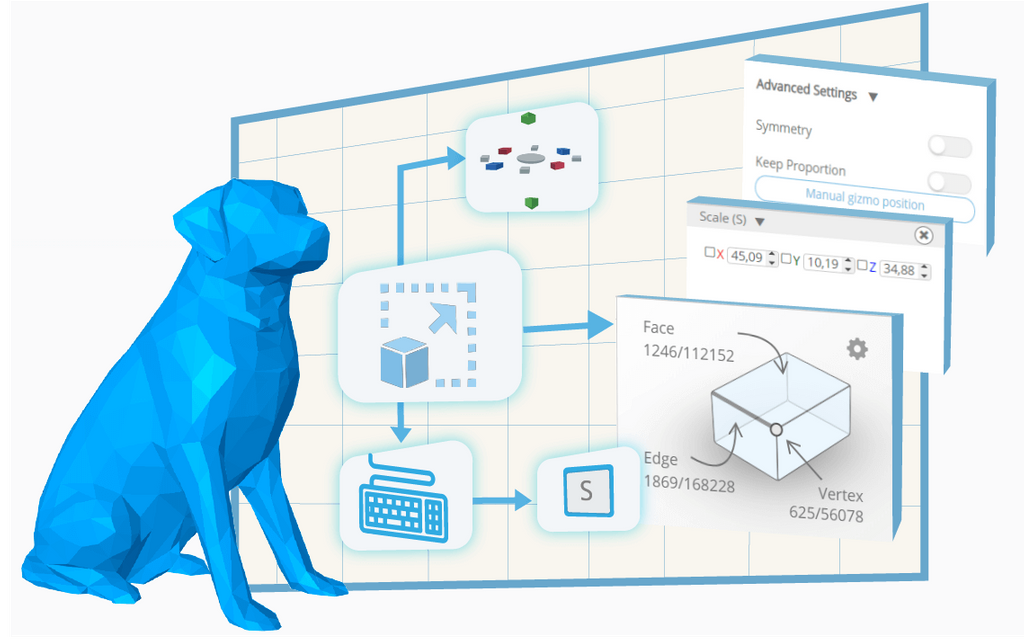
In this article, we are going to learn about SelfCAD's Scale tool. I am going to explain all of the ins and outs of this feature, as well as present its different applications. Scale is one of the basic transformation tools available in SelfCAD, and you can find in the main Toolbar, right next to the Rotate tool. As its name suggests, it allows you to scale selected objects or selected regions of the object. But that's not all! With the help of the Advanced Settings, such as Symmetry and Keep Proportion, you can customize the Scale even further to meet your specific goals. Follow this article to learn all about them!
Select an object
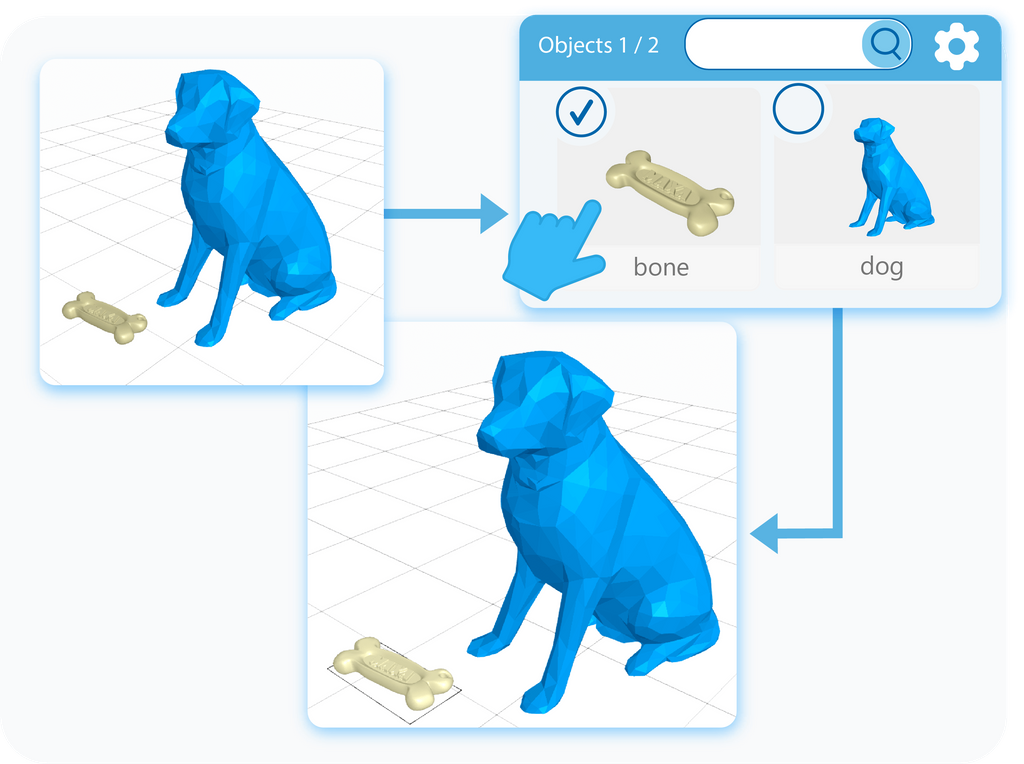
The first step of using any modeling tool is selecting the object on which you want to use it. You can select objects by either left-clicking on them in the workspace or by selecting them in the Object Management section, in the right-side panel. The second option has an in-built search engine, which is extremely useful when you are working with multiple objects.
Activate the tool
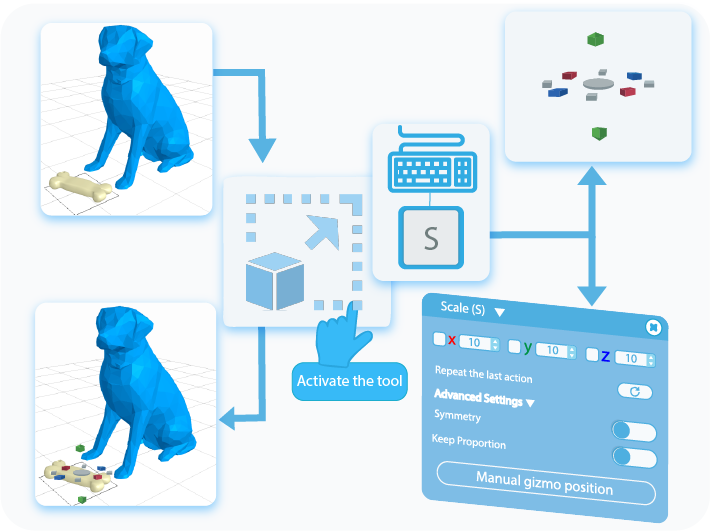
Once the object is selected, you can activate the Scale tool by selecting it from the main toolbar, or by pressing the letter ‘S’ on your keyboard. This way, you’ll open a Tool Setting Panel with all of the customizable options for this tool on the left side of your screen. Activating the Scale tool will also enable the Gizmo that you can use to scale the object in different dimensions.
Scale
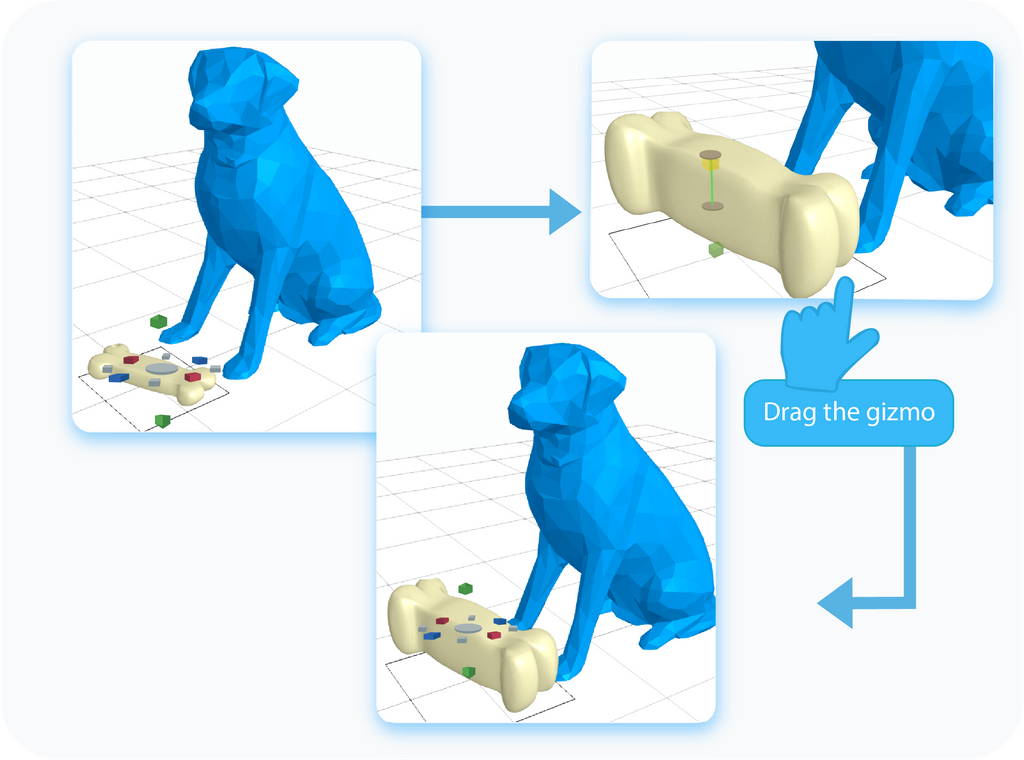
The first option to scale the selected object in SelfCAD is by dragging the Gizmo mentioned in the previous paragraph. As you can see, it points in different directions, which indicate in which dimension and in which way you can scale the object. Please note that you cannot scale the object to be bigger than the workspace.
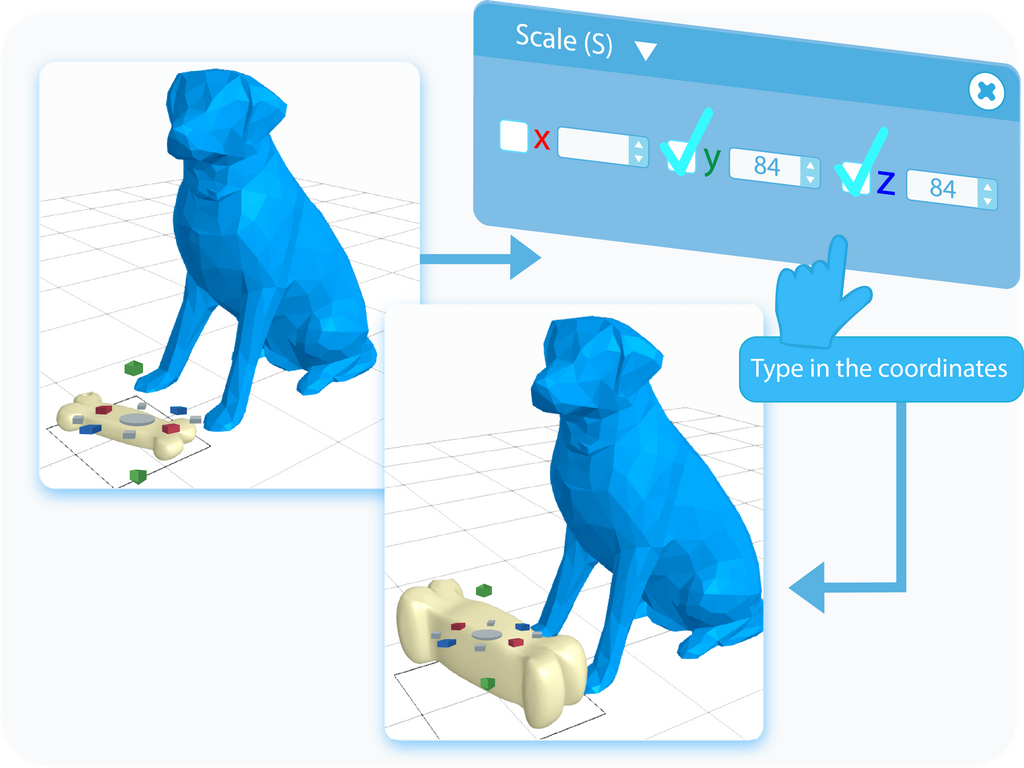
The second way to scale the object is by typing the exact size into the textboxes in the Tool Setting Panel. Furthermore, you can use the checkboxes to copy the same values between the text boxes. Each of them refers to the size of the object on one of the axes, whose position you can check on the 3D Coordinates Axis on the bottom right side of the grid. Just like before, you will not be able to set the size of the object to be bigger than the workspace itself.
Select a region
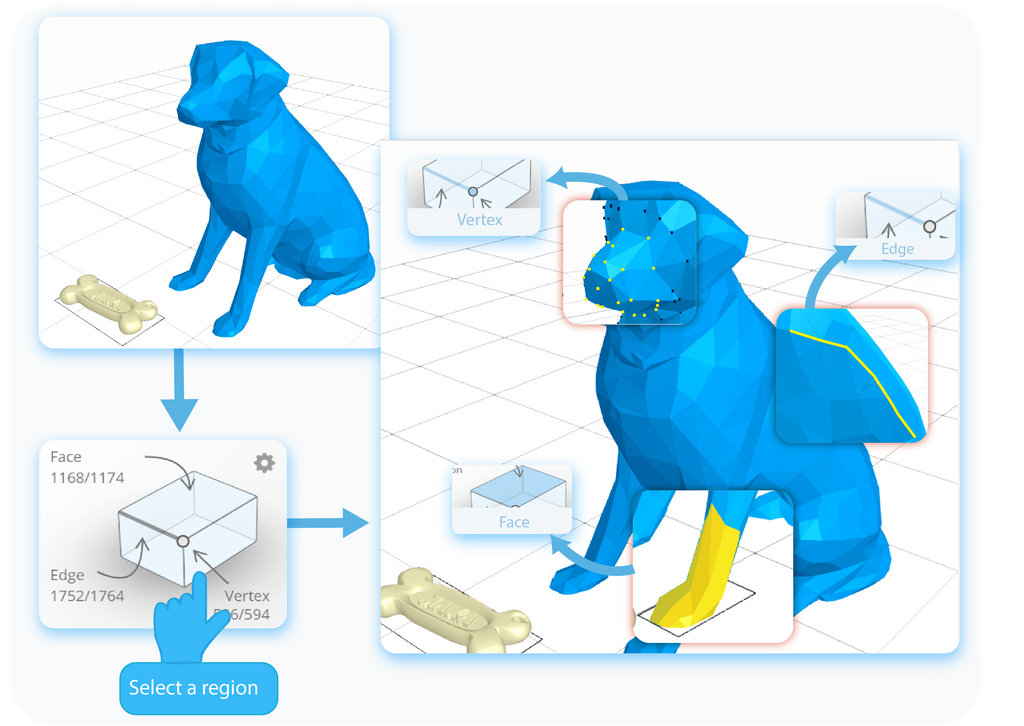
SelfCAD allows you to not only scale the object itself, but you can also scale some of its regions. To do so, you need to select those regions first. In the Right Side Panel, you will find an Interactive Rectangle, where you can enter one of the following selection modes: Face, Vertex, and Edge. Then, you can select the parts of the object that you want to scale.
Scale a region
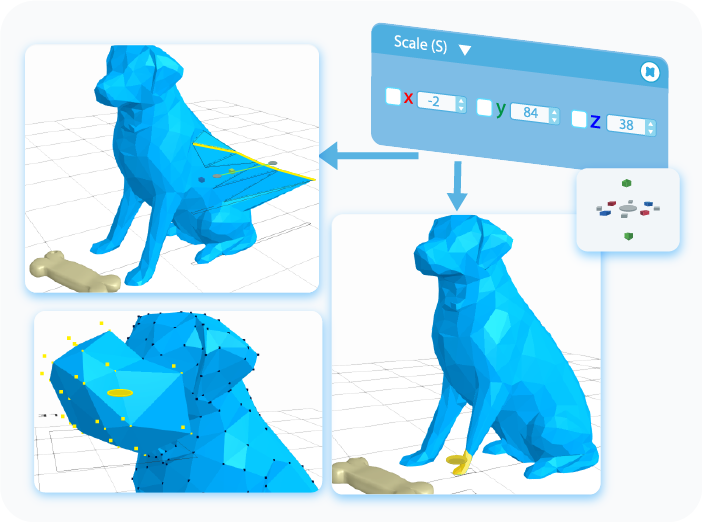
Scaling a region works exactly the same as scaling the object itself does. After selecting a region or regions that you want to scale, you can either drag them with the help of the Gizmo or type in the size into the text boxes, to scale the selected region to the typed value. Just like before, you cannot set the size of the region of the object to be bigger than the workspace itself.
Symmetry
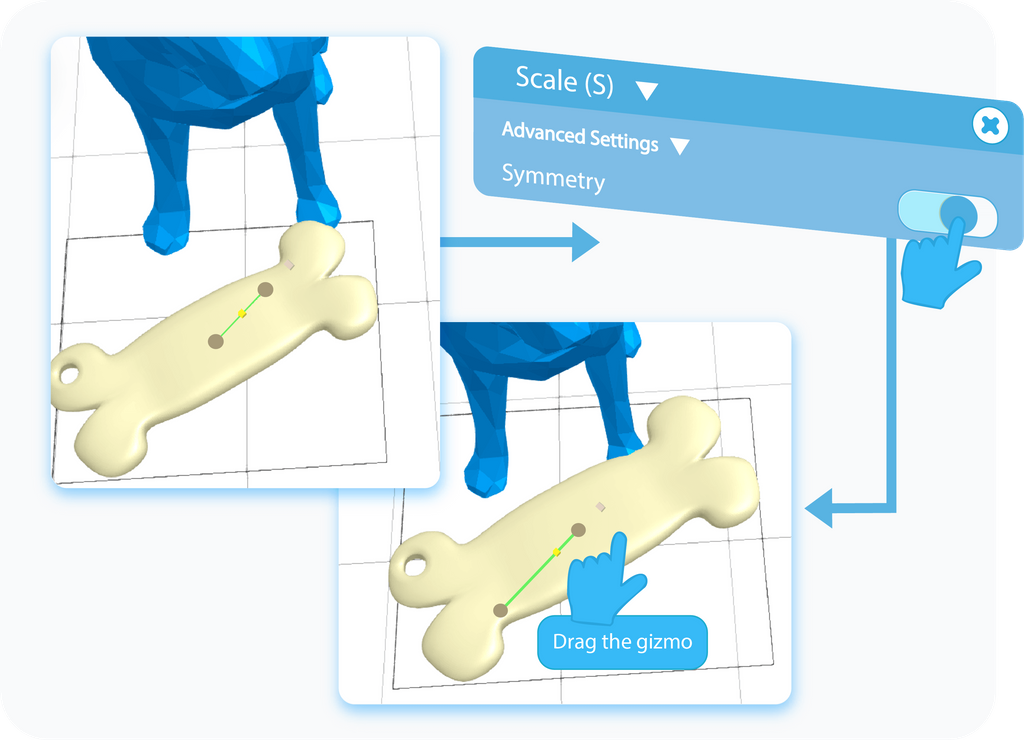
Symmetry is the first option that you will find in the Advanced Settings of the Scale tool, after expanding the drop-down list. After enabling this feature, as its name suggests, you will scale the selected object proportionally to the used axis.
Keep Proportion
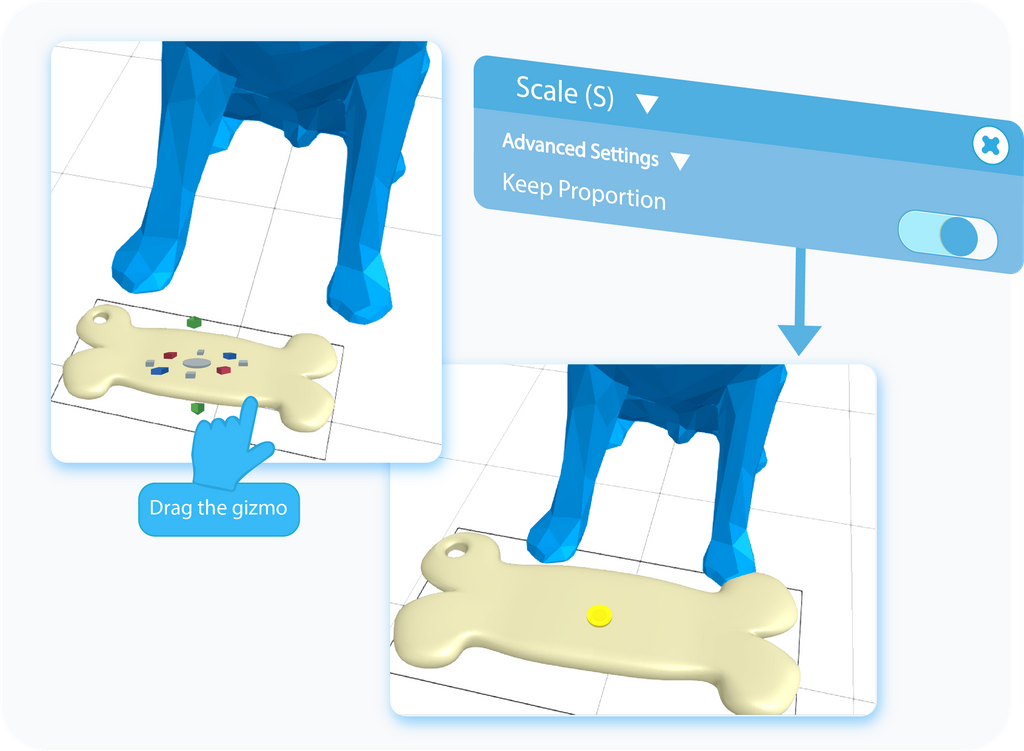
Keep Proportion is the second of the Advanced Settings available for the Scale tool. While Symmetry changes the size proportionally on the used axis, Keep Proportion scales the object proportionally on all axes.
Manual gizmo position
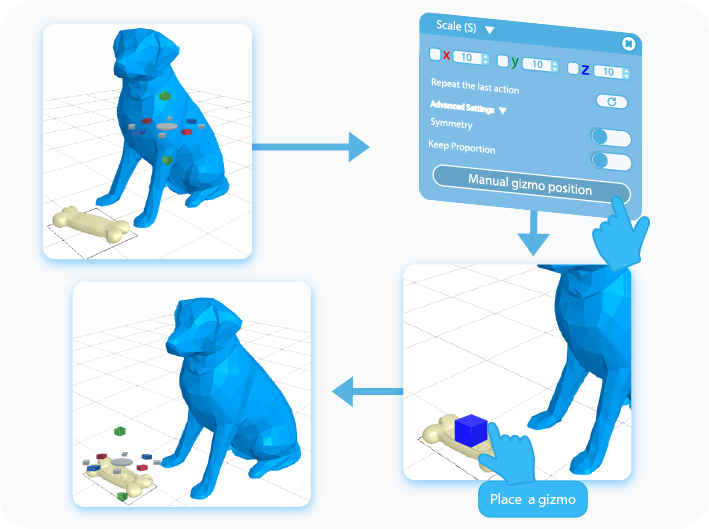
At the bottom of the Advanced Settings panel is the option called Manual Gizmo Position. This feature allows you to change the gizmo’s position to the point where you want your transformation of the object to originate from.
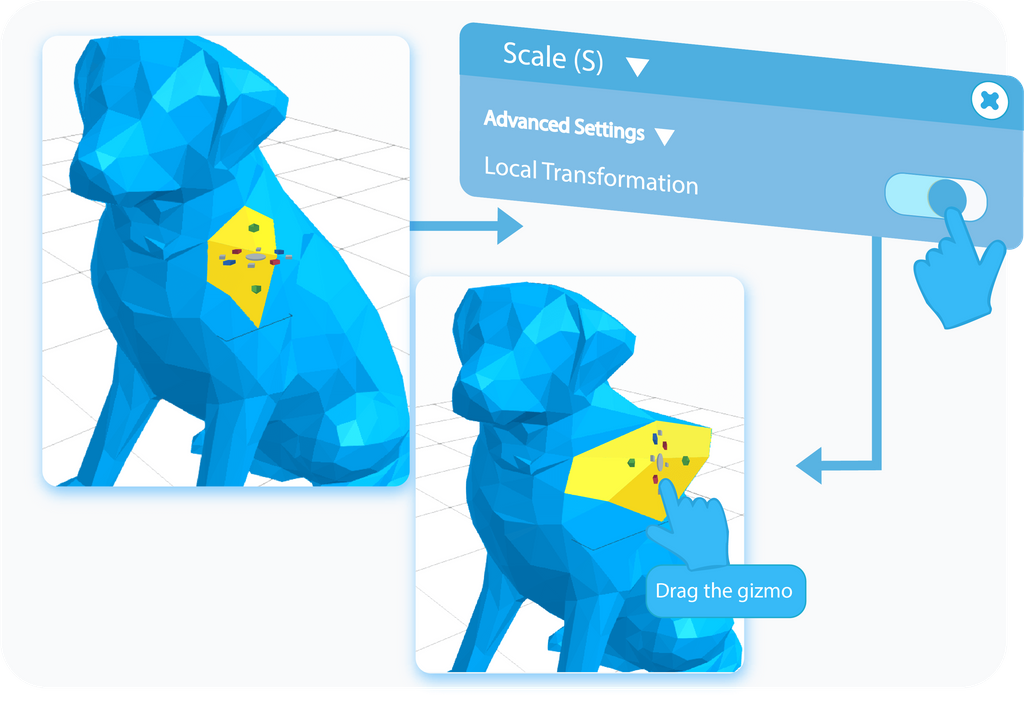
Local transformation
Individual transformation
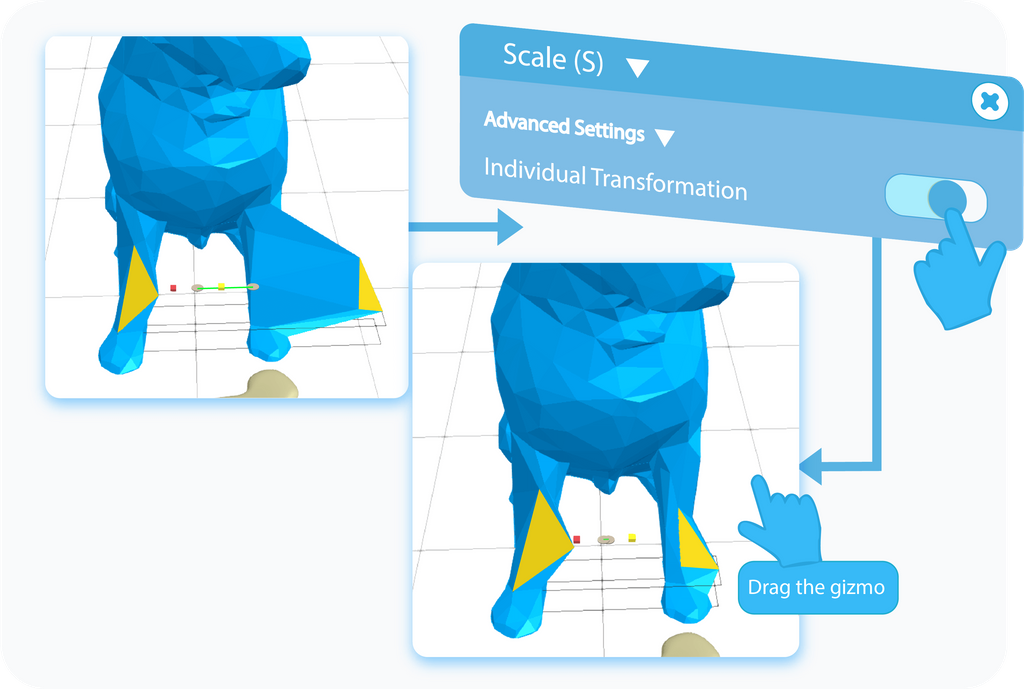
Individual Transformation is another feature available in the Advanced Settings of the Scale tool, and it is available only when you are scaling at least two separate regions of the object. As the name suggests, by enabling this option, you will Scale selected parts independently from each other. Again, if you need a reminder on how to select a region, you can go back to previous paragraphs for a detailed explanation.
Minimum Step Size
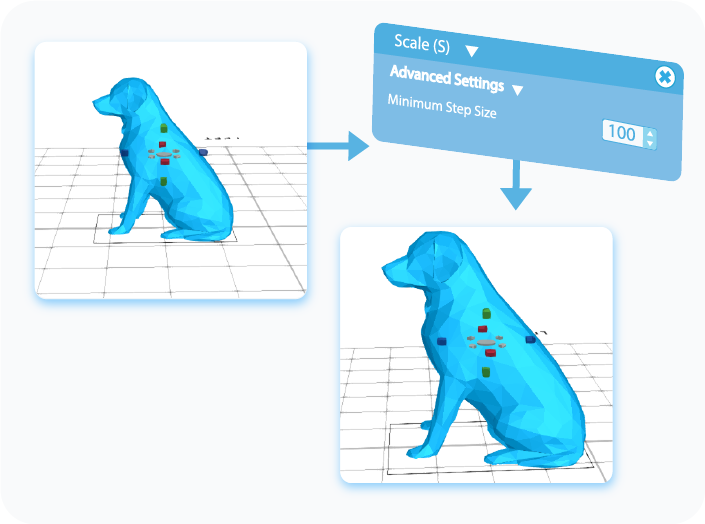
Minimum Step Size is one of the most useful features when it comes to precise modeling, and you have to operate on strict values. It locks the tool at a specified value, and it will scale the object by the multiplication of this value. For example, if you set this feature to 100, then you will scale the object by 100 units in the chosen direction, which will be the first step. When you try to scale it further, it will do so by another 100 and so on.
And that's all there is to the Scale feature. After reading this article, you should know the basics of the Scale tool and how to use it, know about its different applications and how to implement and customize its advanced settings. Of course, the graphics shown here were just examples, and using this tool on other shapes will give you slightly different results. But its underlying principles will always stay the same.
That's all I have for you today. I wish you success in your future projects. See you, and stay tuned for more content to come!
Haven't tried SelfCAD yet? Register now, and try it out for free!

Do you want to learn 3D modeling? Check out our interactive tutorials.


