
Round Object Tool
Table of contents:
Introduction
Round Object
Round Region
Advanced Setting
Hello!
Welcome to the article, in which we are going to learn about SelfCAD's 3D modeling tool called Round Object. I am going to explain all of its ins and outs and present its general applications. On top of that, I will share a few Tips and Tricks that you could use with Modifications.
Round Object is one of the Modify tools available in SelfCAD, and you can find it in the main Toolbar, in the Modify drop-down list. As its name suggests, it allows you to modify selected objects, or selected regions of objects, by rounding the model itself to the point it will resemble a sphere.
Modify is a unique category because the tools in it do not rely on the topology of the object to apply their modifications. Instead, they cut the object and create new topology when needed.
On top of that, with the Advances Settings of the tool, you will be able to customize the bevel even further.
Follow this article to learn all about this tool!
Select the object
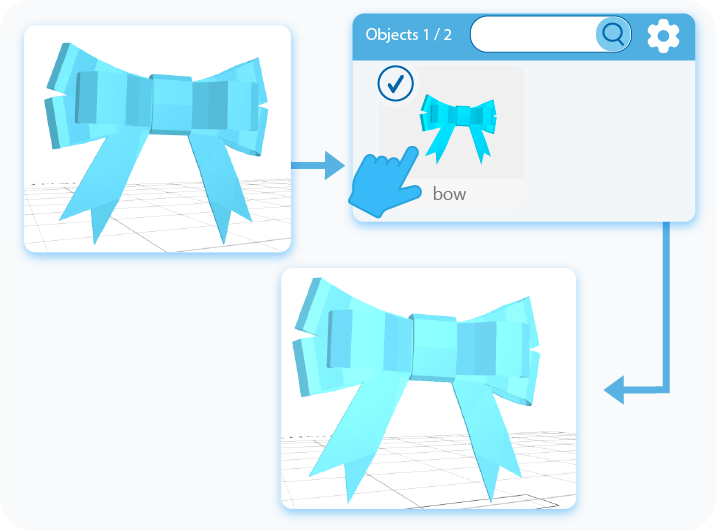
The first step of using any modeling tool is selecting the object on which you want to use it. You can select objects by either left-clicking on them in the workspace or by selecting them in the Object Management section, in the right-side panel. The second option has an in-built search engine, which is extremely useful when you are working with multiple objects.
Activate the tool
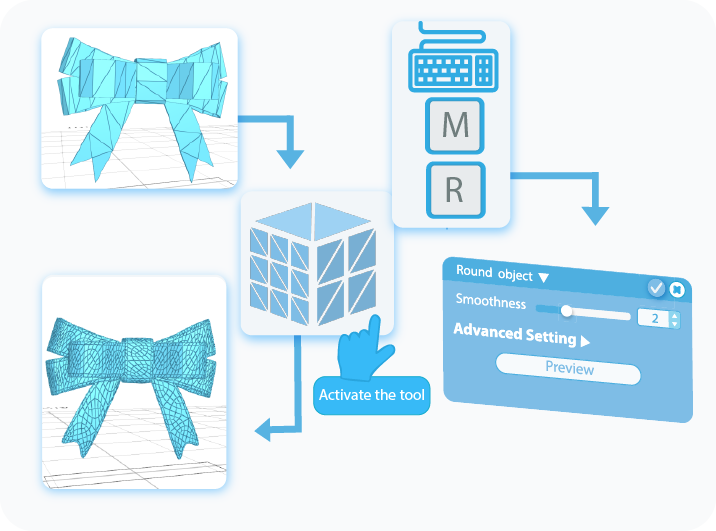
Once the object is selected, you can activate the Round Object tool by selecting it from the Modify drop-down list or use a shortcut by pressing the ‘M+R’ combination on your keyboard. This way, you’ll open a Tool Setting Panel with all of the customizable options for this tool on the left side of your screen.
Round Object
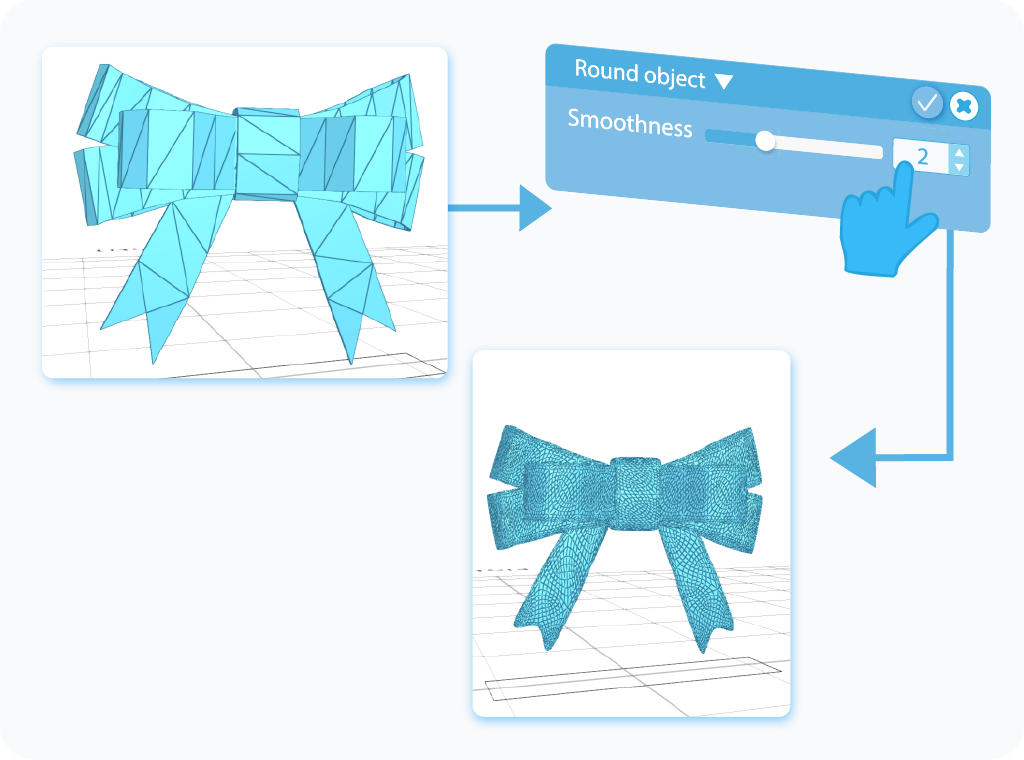
There is just one setting in the Round Object tool, and it's called Smoothness. As always, there are two ways to customize this setting. You can do it either by moving the slider to customize the modification or by typing the value directly into the text-box in the Tool Settings Panel. Smoothness beyond just Rounding the object will also change the level of the detail of the model.
Select a region
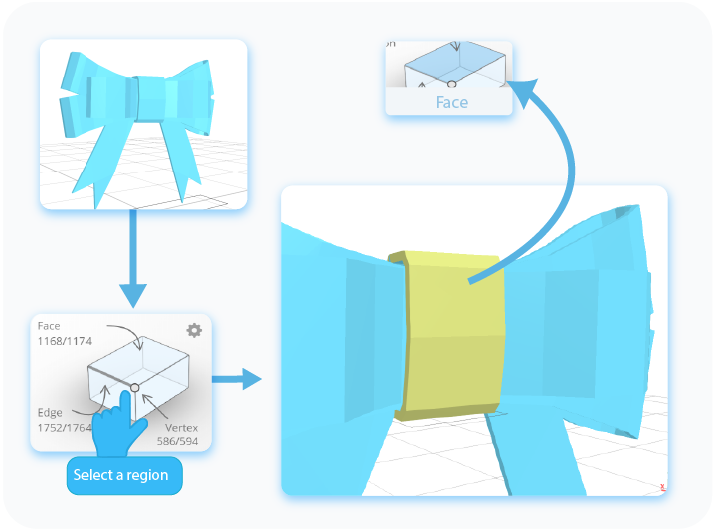
SelfCAD allows you to not only to Round the Object itself, but you can also Round some of its regions. To do so, you need to select them first. In the Right Side Panel, you will find an Interactive Rectangle, where you can enter one of the following selection modes: Face, Vertex, and Edge. Then, you can select the parts of the object that you want to Round.
Round a region
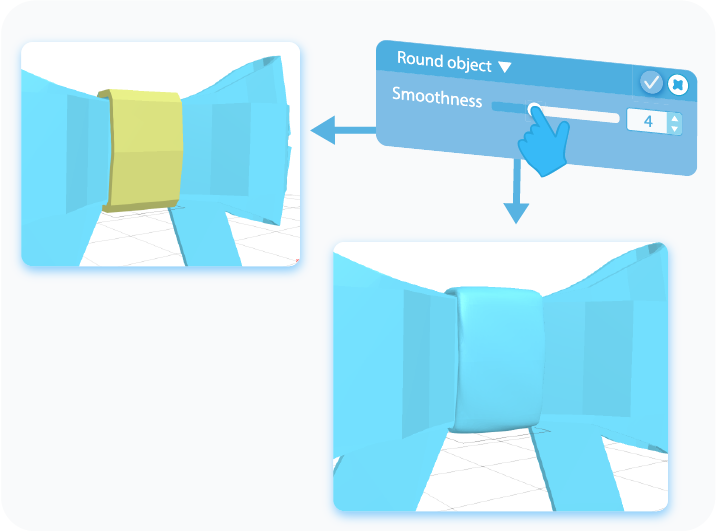
Using Round on regions works exactly the same as using it on the object itself does. After selecting a region or regions that you want to modify, you can customize their Smoothness by either moving the slider or by typing the value directly into the text-box.
Advanced Settings: Linear
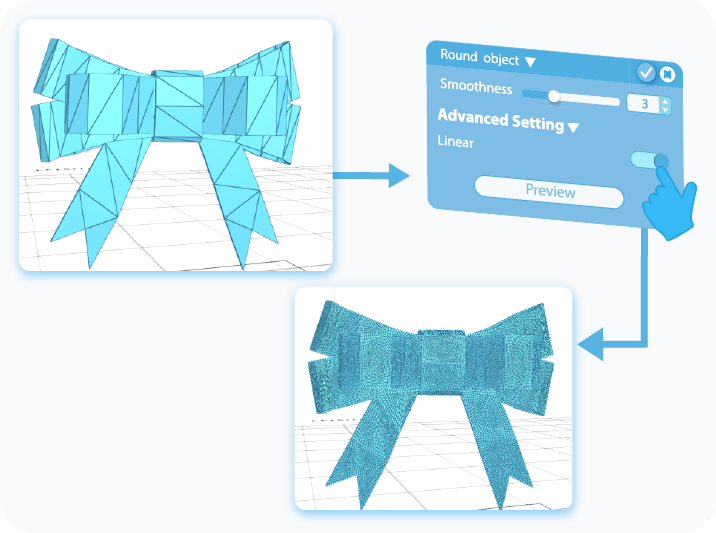
At the very bottom are the Advanced Settings of the Round Object tool. After expanding the drop-down list, you will notice a single setting called Linear, which, when enabled, will multiply the number of segments of the object and increase its resolution without changing its geometry.
And that’s about it for the Round Object. After reading this article, you should know the basics of this tool and how to use it, and know about its different applications. Of course, the graphics shown here were just examples, and using this tool on other shapes will give you slightly different effects, but its underlying principles will always stay the same.
That's all I have for you today. I wish you success in your future projects. See you, and stay tuned for more content to come!
Haven't tried SelfCAD yet? Register now, and try it out for free!

Do you want to learn 3D modeling? Check out our interactive tutorials.


