
Why Is My 3D Printer Knocking? Causes and Fixes
A knocking 3D printer can be worrying, especially when the sound starts in the middle of a long print. Sometimes, it is just the nozzle rubbing against the printed layers. In other cases, the extruder may be struggling to push filament, or a loose pulley may be causing the noise.
The key is to identify where the knocking comes from before changing any settings. This guide explains the most common causes, how to check them, and which fixes are worth trying first.
1. The Nozzle Is Hitting the Printed Model
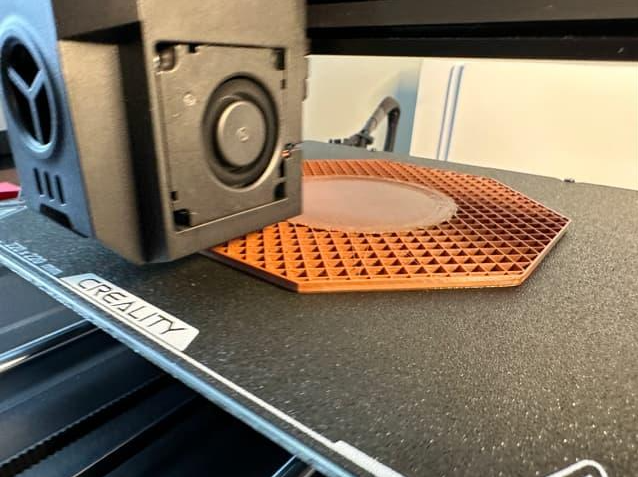
If you hear a repeated tapping or scraping sound as the print head moves across the model, the nozzle may be hitting raised areas of the print. This often happens when the infill or top layers rise above their intended height.
Warped edges and curled overhangs can also get in the nozzle's path. Prusa identifies nozzle collisions with warped overhangs and some infill configurations as possible causes of layer shifting.
How to fix it:
Make sure the nozzle isn't hitting the model when it's traveling or when it's depositing filament before proceeding. Turn on Z-hop when you retract in your slicer if it occurs while you're traveling. Z-hop is a collision avoidance technique that involves gradually elevating the nozzle during a travel maneuver.
Use a Z-hop height of 0.2 mm as a baseline for your experiment. Try 0.4 mm if the nozzle is still touching the model. If you want to see if the additional movement produces stringing or longer print times, follow your printer's recommended profile. These are starting values, not universal settings.
2. The Extruder Is Clicking or Knocking
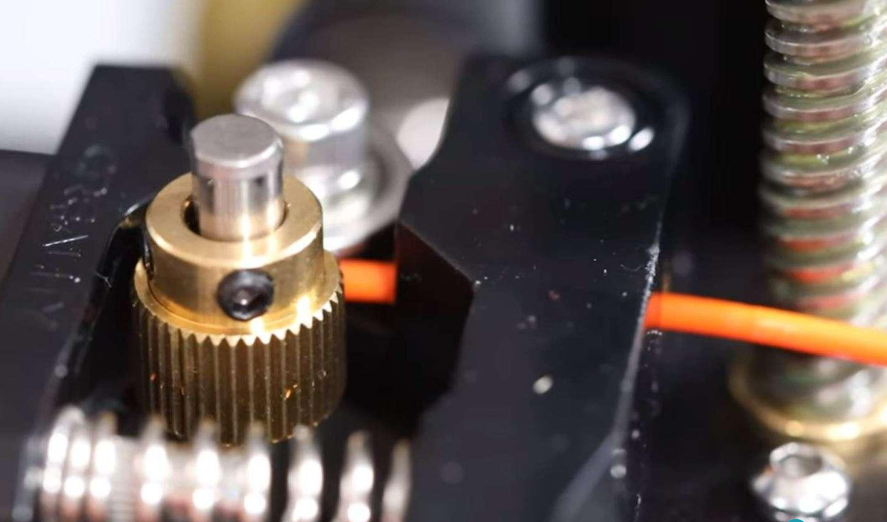
A rapid clicking sound from the extruder often means the drive gears cannot push filament through the hotend smoothly. The extruder motor may be skipping steps because it is meeting too much resistance.
Common causes include a partially clogged nozzle, incorrect idler tension, dirty drive gears, a restricted filament path, or a nozzle temperature that is too low for the selected material.
How to fix it:
Take a moment out of the print job to make sure the filament is flowing out evenly. Make sure the filament is untangled and can flow freely through the guide tube after inspecting the spool. Make sure there is no debris or ground filament on your printer's driving gears if they are accessible.
Refer to the printer's manual for instructions on how to clean the nozzle if it seems partially obstructed. You can also experiment with a nozzle temperature that is 5-10°C higher than your current setting, as long as it stays within the recommended range of the filament manufacturer. If the extrusion process becomes more efficient, the issue can lie with the temperature or resistance.
3. The Nozzle Is Clogged
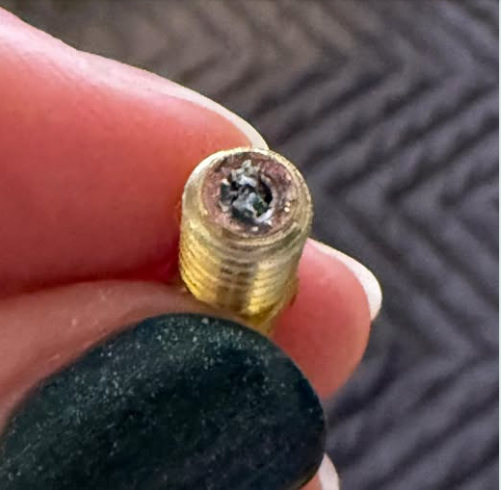
A clog can cause knocking because the extruder keeps pushing filament against a blockage. You may also notice weak extrusion, missing lines, thin walls, or a print that suddenly stops producing plastic.
Clogs can result from debris, overheated or degraded filament, incompatible temperature settings, or material remaining in the hotend after a filament change.
How to fix it:
Get the nozzle hot enough to handle the filament you're using, and then follow your printer's instructions for loading or extruding filament to make sure it's flowing properly. There can be an obstruction if the filament curls up or barely emerges.
To clean the nozzle, use a needle kit that is suitable with your printer or, if your printer allows it, do a cold pull. To find out the precise dimensions of the hotend, refer to the factory manual. Do not disassemble a powered hotend or force a tool into the nozzle unless instructed to do so in the service procedure.
If the extrusion problem persists after cleaning, check the hotend and nozzle for signs of damage or a more serious obstruction.
4. Loose Belts or Motor Pulleys
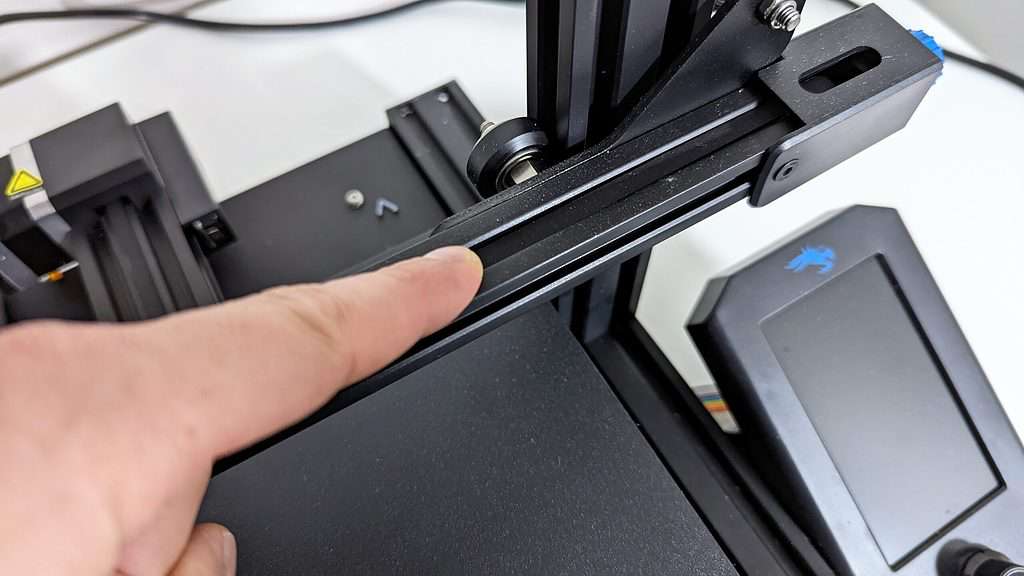
The motion system might be to blame for the knocking that occurs whenever the print head changes direction. Components that rub against the frame, improperly tensioned belts, or loose motor pulleys can cause mechanical noises to repeat.
One other reason for layer shifting—when a section of the print abruptly becomes misaligned—is a loose pulley. When layer shifts occur, Prusa suggests examining the pulleys and belts along the X and Y axes.
How to fix it:
Before you check the mechanical parts, turn off the printer and halt the print job. Find any screws that seem to be loose, belts that show signs of deterioration, and pulleys that seem to be moving apart from their motor shafts.
Lessen the tension on the belts. Bear in mind that bearings and motors can take a beating from too much strain. For optimal belt alignment on CoreXY machines, be sure to use the printer's recommended tensioning procedure.
When possible, make use of the printer's built-in belt-tensioning routine. Instead of winging it, go to the manufacturer's maintenance manual for instructions on how to adjust the pulley or belt.
5. The Print Head or Bed Is Rattling
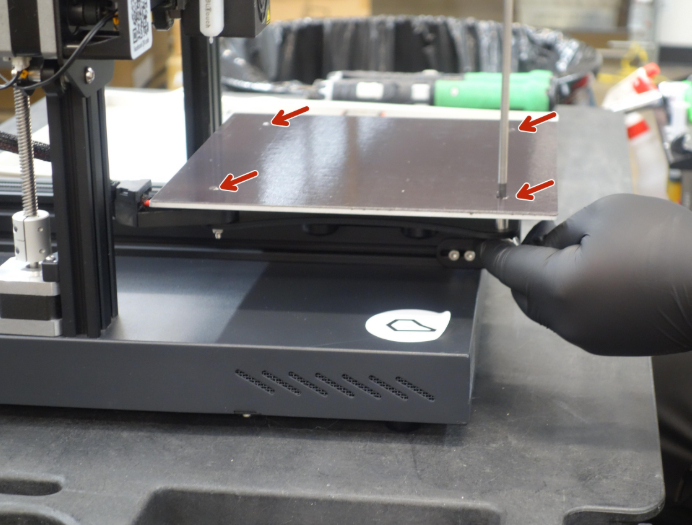
Sometimes the sound does not come from the nozzle or extruder at all. A loose toolhead cover, fan shroud, build plate, bed screw, spool holder, or external panel can rattle as the printer moves.
This type of knocking often changes when the print head changes direction, or the bed moves forward and backward.
How to fix it:
With the printer switched off and cool, gently check accessible covers, the build plate, spool holder, and mounting screws. Remove any loose filament scraps or tools that could vibrate against the frame.
If the sound seems to come from the bed or motion system, inspect the relevant screws and moving parts according to your printer's service instructions. Do not lubricate every moving part indiscriminately: linear rails, smooth rods, lead screws, and bearings may require different maintenance products.
If the noise persists after checking accessible parts, record it and contact the printer manufacturer's support team.
6. The Nozzle Is Scraping Across the Infill
A printer can make a rough tapping or scraping noise even when the model looks acceptable. The nozzle may be travelling over infill lines or crossing a surface that is slightly raised above its intended height.
This can happen when extrusion is too high, the infill pattern creates crossing points, or the nozzle does not lift during certain travel moves.
How to fix it:
Check the model for excessive material on the top surface or raised infill. If the print looks overfilled, return to the filament and extrusion settings in your printer's default profile before making small adjustments.
You can also test a different infill pattern if the knocking occurs repeatedly at the same points. If the noise occurs during travel, try a small Z-hop adjustment, such as 0.2–0.4 mm, and compare the result. Z-hop may reduce collisions, but it will not correct over-extrusion or a warped model.
7. The Printer Is Moving Too Fast
A printer's movement system could become more audible at speeds of high travel and quick direction changes. Knocking might be an indication that your new settings are too harsh for the machine, its frame, or the print at hand if it began after you accelerated or sped up.
On the other hand, a sharp mechanical knock is distinct from typical engine noise. You can't always attribute sudden, audible changes to increased velocity.
The solution:
Use the standard control or slicer settings to slow down the printer. As a preliminary diagnostic, you can see if the noise goes away by lowering the current speed to about 70 to 80%. Please note that this is only a test and not an official recommendation for speed.
After you hear an improvement in the sound, it's a good idea to follow the manufacturer's instructions for the acceleration and travel settings. Check the frame, belts, and pulleys as well; running at high speeds can really be a sign of a loose part rather than the real problem.
8. The Filament Is Tangled or Feeding Poorly
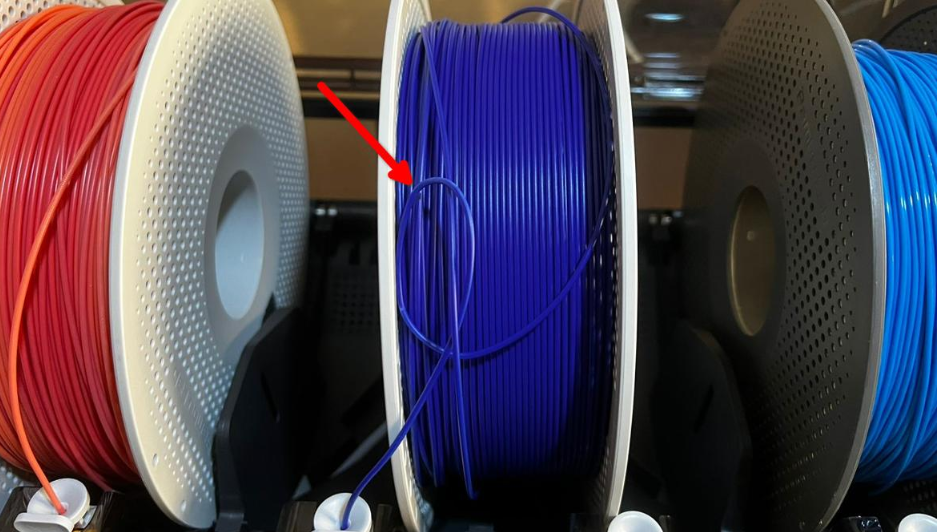
A spool that cannot unwind freely can place extra resistance on the extruder. The printer may click as it tries to pull filament, or the spool may make a knocking sound as it catches on its holder.
This can happen when filament crosses over itself, catches on the spool edge, or gets trapped in a poorly routed guide tube.
How to fix it:
Pause the print and check the spool path from end to end. Make sure the spool rotates freely and that the filament is not caught under another loop. Check the guide tube for sharp bends or obstructions.
If the filament is tangled, carefully unwind the affected section and rewind it neatly. Keep the filament end secured when storing the spool so it cannot slip underneath another loop.
A filament dryer will not fix a physical tangle. Only consider drying if the material also shows signs of moisture, such as popping sounds, excessive stringing, or rough extrusion.
A Quick Checklist for a Knocking 3D Printer
Use this checklist to narrow down the cause before attempting repairs.
- Knocking during travel: Check for nozzle collisions and test Z-hop.
- Clicking from the extruder: Check filament feeding, drive gears, and nozzle flow.
- Layer shifts: Inspect belts, pulleys, and obstructions.
- Rattling from the frame or bed: Check accessible screws, covers, and the build plate.
- Noise started after a speed change: Reduce speed temporarily and inspect the motion system.
- Noise started after changing filament: Check the temperature profile and filament path.
Best 3D Modeling Software for Education
SelfCAD is a beginner-friendly 3D modeling tool that combines AI-assisted design with traditional modeling tools. Its AI Assistant helps users generate 3D models from text prompts, while tools such as Fillet, Chamfer, Simplify, and Boolean operations let them refine the geometry. You can also sculpt, render, and slice models in the same workspace. For beginners interested in 3D printing, SelfCAD offers a practical way to learn AI-generated modeling and prepare designs for printing without switching between multiple applications.
Final Thoughts
If your 3D printer is making a clattering sound, it can be a sign of an issue. If you hear clicking or scraping from the extruder, it could be because of filament resistance. If you hear knocking as you change directions, it could be because of a loose or misaligned motion component.
Check the filament path, the nozzle for collisions, and the accessible mechanical parts with the printer turned off as a basic starting point. Make modest adjustments at a time and check the outcome with a test print.
Do not, under any circumstances, alter the slicer settings to conceal a mechanical issue. If the problem persists after you've fixed the root cause, try adjusting the print settings.