
How to Use the New Filament Manager in Bambu Studio 2.6
Filament management has consistently ranked among the most significant obstacles faced by 3D printers. The amount of filament remaining on a spool is simple to lose track of. Once customers buy multiple rolls, they often forget the specific brands, colours, and materials used. Failed prints, wasted materials, or needless purchases are common results of this.
In order to address these issues, Bambu Studio 2.6 brings a new Filament Manager. Here you will find detailed instructions on installing and configuring the Filament Manager, as well as how to utilise it to streamline your printing process.
What Is the Filament Manager?
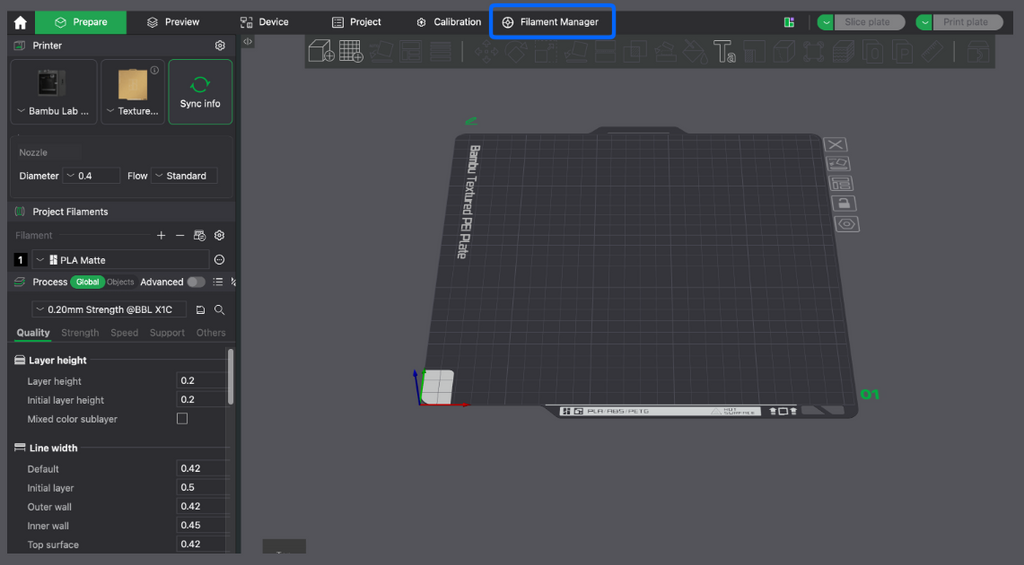
Bambu Studio 2.6 introduces a brand new inventory system called the Filament Manager. You can keep track of all the filament spools you have with it. You may access all of your resources in one convenient location, eliminating the need to rely on memory or scribble notes.
The manager keeps track of important details, including the brand, kind, colour, weight of the spool, and amount of filament left. As soon as a print job finishes, the system updates the remaining material on the spool. You can now anticipate when to reorder or replace filament with much more precision.
Filament Manager users with an AMS can have compatible Bambu Lab filaments detected automatically through RFID tags. You can easily input the data yourself if you utilise stuff from other sources.
Why Bambu Added This Feature?
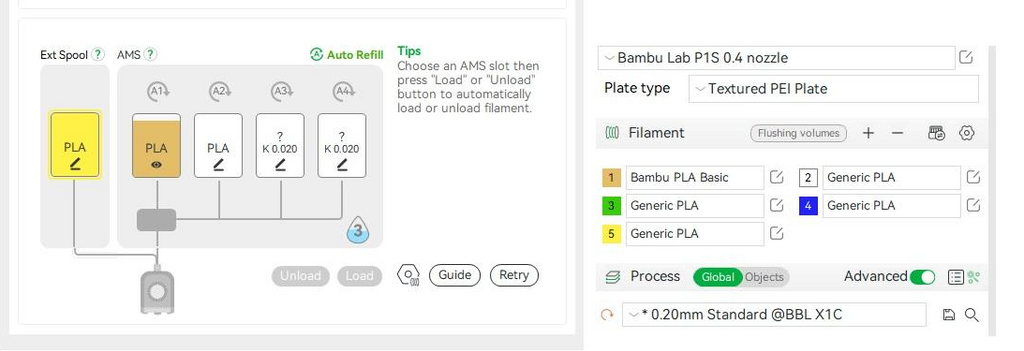
The number of filament spools owned by hobbyists and pros often exceeds dozens. As time goes on, it gets harder to keep track of the remaining material and which colours are available.
Spool weight estimation or manual tracking spreadsheet creation were the only options available to users before version 2.6. Bambu Studio's new Filament Manager streamlines the process, doing away with the need for manual labour. Users can relax and enjoy more printing time because they spend less effort organising filament.
Main Features of the Filament Manager
Managing filaments is a breeze with the new system's several enhancements.
- Centralises all of your filament data.
- Saves track of filament left over after printing.
- Automatically detects compatible Bambu Lab filament through the AMS.
- A user can manually insert filament from a third party.
- Allows for the deletion, editing, sorting, filtering, and searching of filament records.
- Keeps all of your filament details in sync with your Bambu account on all of your compatible devices.
How to Open the Filament Manager?
Get Bambu Studio up to date to 2.6 or a later version first. To enable cloud synchronisation after installation, run the program and log in with your Bambu account.
Navigate to the main interface and select the Filament Manager tab. Among the other administration tools, you should be able to locate the most recent version. You can see all of the spools you have in your inventory in this window. If you're new to this feature, the list won't have any filament on it until you start adding items.
How to Add a New Filament Spool?
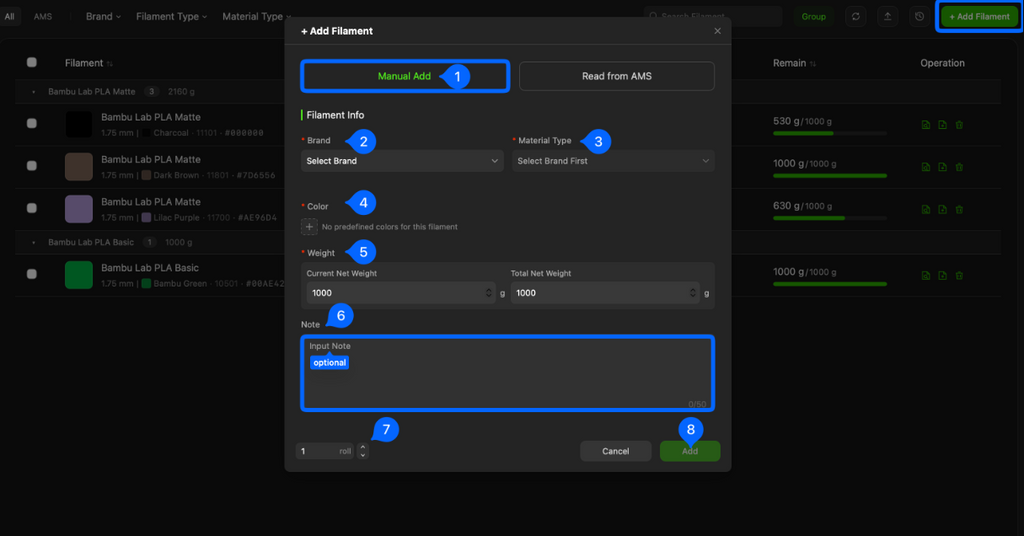
Filament addition is easy. To add a new filament entry, choose that option. After that, you'll have to input some details on the spool.
Prioritise the manufacturer. The next step is to choose the material. You have options including PLA, PETG, ABS, TPU, and ASA. Next, choose the spool size and colour of filament. Even if you've only used half of the spool, you can still keep track of the weight.
After you've saved the spool, it will be available for future prints as part of your personal inventory.
Adding Third-Party Filament
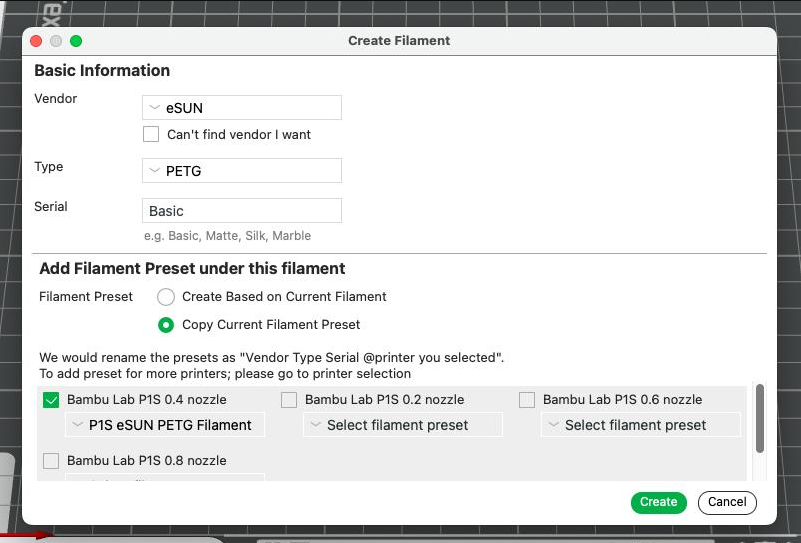
Outside of Bambu Lab, many users print with different brands. The Filament Manager, thankfully, is completely compatible with these materials.
Just type in the spool information instead of scanning the RFID tag. Include the name of the brand, the type of material, the colour, and the expected remaining weight. This way, you can keep track of all of your filament without worrying about mixing brands.
This function is particularly helpful for makers who buy specialised materials or compare various brands of filament.
How Does Automatic Filament Detection Work?
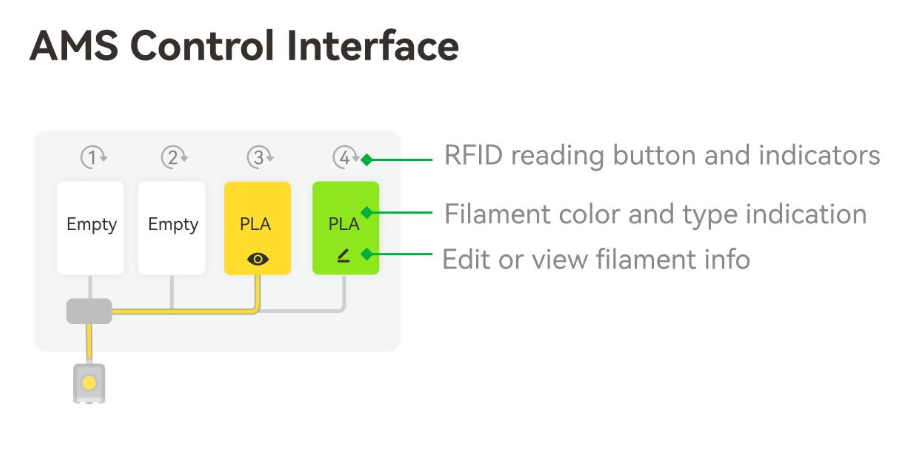
Using official Bambu Lab filament in an AMS makes most of the work disappear.
The material is identified by the RFID tag as soon as the spool is inserted into the AMS. Filament type and colour are among the details read by the software. After that, you may add the spool to your inventory with minimal effort.
This built-in detection system shortens the setup process and aids in the avoidance of filament selection errors during print jobs.
Tracking Remaining Filament
Automatic filament tracking is a really beneficial enhancement.
We know exactly how much material goes into each print. At the end of the printing process, the Filament Manager deducts that amount from the calculated spool weight. You can now more accurately gauge the amount of filament that is still available.
Looking at the spool and making an educated guess is far riskier than using the value, which is still an estimate rather than an actual measurement. Avoiding starting huge prints with nearly empty rolls is another benefit.
Editing Filament Information
In certain cases, editing data after adding a spool may be necessary.
Maybe you switched up the spool weight, typed in the incorrect colour, or switched out the reels. You can change these details whenever you want via the Filament Manager.
The software's ability to keep track of inventories and the reliability of future filament estimations are both enhanced by meticulous record-keeping.
Searching and Filtering Your Inventory
The challenge of selecting the appropriate spool increases as your collection expands.
Filtering and searching are two features that greatly facilitate navigation in the Filament Manager. With this feature, you won't have to navigate through every spool to find the material, brand, or colour you're looking for.
Users with big print farms or workplaces that keep many different materials may find these filters very handy.
Using the Filament Manager with the AMS
The AMS and the Filament Manager are complementary tools. You can keep track of your inventory with the Filament Manager, and the AMS will handle loading and switching filament during printing.
Once you install authentic Bambu Lab filament, the machine will instantly recognise the spool. When a print job is finished, the program keeps tabs on the amount of material used and updates the remaining quantity.
As a result, the user's workflow becomes more efficient and requires less manual labour.
Design Your Models Easily with SelfCAD
Before slicing your model in Bambu Studio, you need reliable 3D design software. SelfCAD is one of the best options for beginners, hobbyists, educators, and professionals because it combines modeling, sculpting, and slicing in one easy-to-use platform. It includes powerful tools like the Freehand Drawing Tool for creating custom sketches, the Revolve Tool for turning 2D profiles into 3D objects, the Magic Fix Tool for repairing non-manifold meshes and preparing models for printing, and the Sculpting Tools for adding fine details and organic shapes. With its cloud-based workspace and intuitive interface, SelfCAD makes it easy to design, edit, and prepare high-quality 3D models for printing in Bambu Studio.
Final Thoughts
Among the many useful new features in Bambu Studio2.6, the Filament Manager stands out. Now that you can manage filament like an inventory, the software no longer views it as something you just load into the printer.
The cloud synchronisation, search tools, remaining filament estimates, manual entries for third-party brands, automatic AMS identification, and support for these features take a lot of uncertainty out of ordinary printing. No matter how many spools you have, this function will help you save time, cut down on wasted material, and keep your printing sessions organised.
Frequently Asked Questions
1. Does the Filament Manager work without an AMS?
Yes. If you do not have an Automatic Material System (AMS), you can still utilise the Filament Manager. Manually input the brand, material type, colour, spool size, and remaining weight of your filament spools. Even without RFID-based detection, Bambu Studio still allows you to organise your filament inventory.
2. Can I add third-party filament to the Filament Manager?
Yes, you may manually add third-party filaments in Bambu Studio 2.6. Many other brands are available for you to write entries for, including Polymaker, eSUN, SUNLU, Overture, and Hatchbox. Regardless of the brand, you can now easily keep track of all your filament in one convenient location.
3. Does the Filament Manager automatically track filament usage?
Your setting determines it. Using the AMS and Bambu Cloud, official Bambu Lab filaments can automatically update when used with compatible hardware. Unfortunately, a lot of people have noticed that the automatic tracking for third-party filaments that users have added manually is still rather limited. So, until there are updates for the software, you might have to update it manually.
4. Can I edit or delete filament entries?
Yes. The colour of the filament, the type of material, the remaining weight, and the details of the spool are all editable. For even more inventory management efficiency, you can delete any filament entries that are empty or no longer needed. You can also sort, search, and filter your filament collection using the Filament Manager.
5. Which printers support the Filament Manager?
Not a printer in particular, but rather Bambu Studio 2.6's Filament Manager. All of the X1, P1, A1, and H2 series of Bambu printers are compatible with it. Your printer's model, firmware version, and AMS usage determine which additional features you can utilise, such as automated RFID recognition and filament synchronisation.