
Explore Lightweight Lattice Structures Using SelfCAD AI
Designing interconnecting struts, repeating geometric patterns, support nodes, and connecting pieces before assembling them into a comprehensive framework is the standard method for creating a lightweight lattice structure. By using natural language to describe the arrangement and design of the lattice structure, you can use SelfCAD AI Modeling to create an initial 3D model from your thoughts.
Geometric structures and functional assemblies are among the many 3D designs supported by SelfCAD AI Modeling. SelfCAD's conventional modeling tools allow you to examine, adjust, and improve the lightweight lattice structure's struts, connection points, cell patterns, and supporting parts. You can create a detailed model that is appropriate for design visualization, prototyping, educational projects, or 3D printing by modifying the size, proportions, spacing, and strut thickness.
Step by Step Design: Lightweight Lattice Structure with SelfCAD AI Modeling
This tutorial will demonstrate how to construct a lightweight lattice structure using interconnected struts, repeating geometric patterns, support nodes, and connecting elements. The procedure demonstrates a fundamental AI modeling principle for design visualization, prototyping, or 3D printing: the generated 3D model will more closely resemble your intended lattice design the more precisely you describe the structure's dimensions, cell patterns, strut thickness, spacing, connection points, and overall geometry.
Step 1: Open SelfCAD Editor
Start by creating a new project in the SelfCAD Editor.
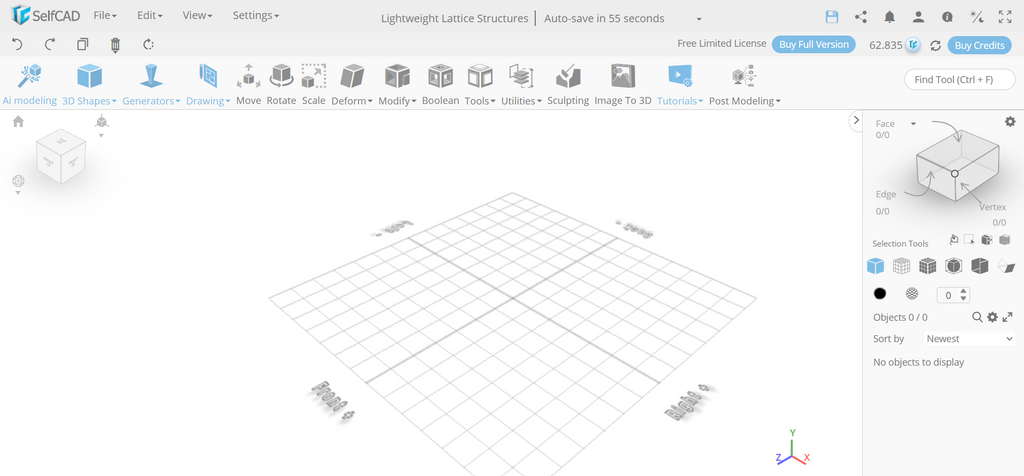
You will use AI Modeling to construct the first shape of a lightweight lattice structure for this project. The AI-generated design will be built upon interlinked struts, repetitive geometric cells, support nodes, and connecting parts. To obtain the intended lightweight geometric structure, use SelfCAD's standard modeling tools after creation to tweak the strut thickness, align the connections, adjust the dimensions, and enhance the overall framework.
Step 2: Open AI Modeling.
Choose the SelfCAD Editor's AI Modeling option.
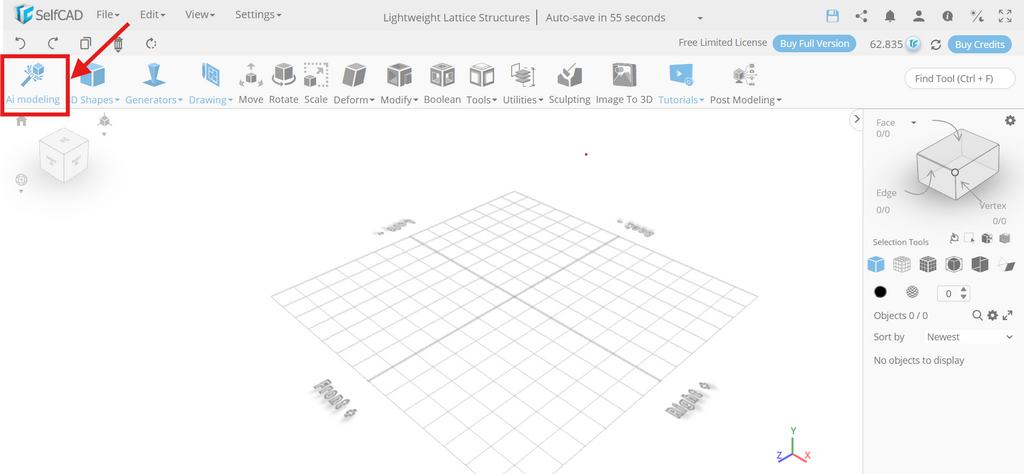
Using the text prompt field, describe the lightweight lattice structure you wish to create. To enable a variety of 3D designs, SelfCAD provides several AI modeling techniques.
Instead of making an organic sculpture or ornamental item, the project's objective is to develop a lightweight geometric structure. Give a thorough explanation of the supporting nodes, connecting components, repeated cell patterns, interlinked struts, and overall structure. To assist the AI in creating a preliminary model that corresponds with your intended lattice design, you can additionally provide the dimensions, strut thickness, cell form, spacing, connecting points, and pattern layout.
Step 3: Select the appropriate creation mode
For your lightweight lattice construction, choose the creation option that works best. If your design calls for a number of interconnected parts, support components, and structural connections that must fit together in accordance with your intended layout, select Functional Assembly.
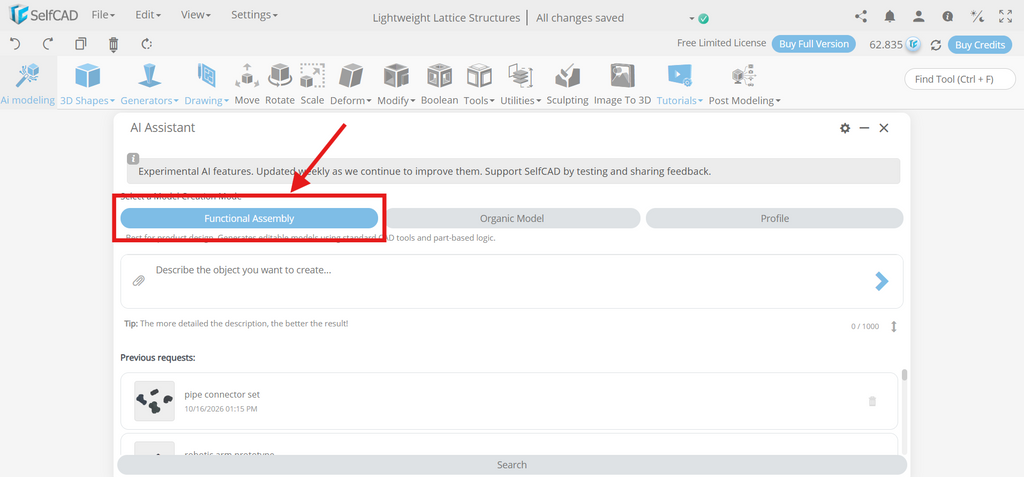
Interconnected struts, repeating geometric cells, support nodes, connecting components, and reinforcing sections are some examples of lattice structures. Explain how these elements should be integrated and structured to create a coherent framework. You may fine-tune strut thickness, cell spacing, connection points, structural proportions, and other design aspects in SelfCAD by giving the AI specific instructions that help it comprehend the general geometry and interactions between the elements.
Step 4: Prepare a Reference Image
It is completely optional to provide a reference image of a lightweight lattice structure, but it can offer helpful visual advice for your design. Choose an image that depicts the general framework, interconnected struts, repeating geometric cells, support nodes, and connecting elements, if one is available.
Your desired lattice pattern, cell proportions, element arrangement, and structural look can all be communicated with the reference image. But rather than taking the place of your text prompt, it should complement it. The SelfCAD AI Assistant uses your written instructions to comprehend the design specifications and create the first 3D model.
Step 5: Write the AI Modeling Prompt
Using SelfCAD AI Modeling, describe the lightweight lattice structure you wish to build. Add the support nodes, connecting components, reinforcing sections, repeating geometric cells, and interconnecting struts. Determine the overall dimensions, strut thickness, cell forms, spacing, connection points, and elemental arrangement to produce a uniform geometric framework. To meet your design specifications, you can additionally incorporate extra patterns and structural supports. SelfCAD's standard modeling tools can be used to further build and refine the initial lattice model that is generated by a clear prompt.
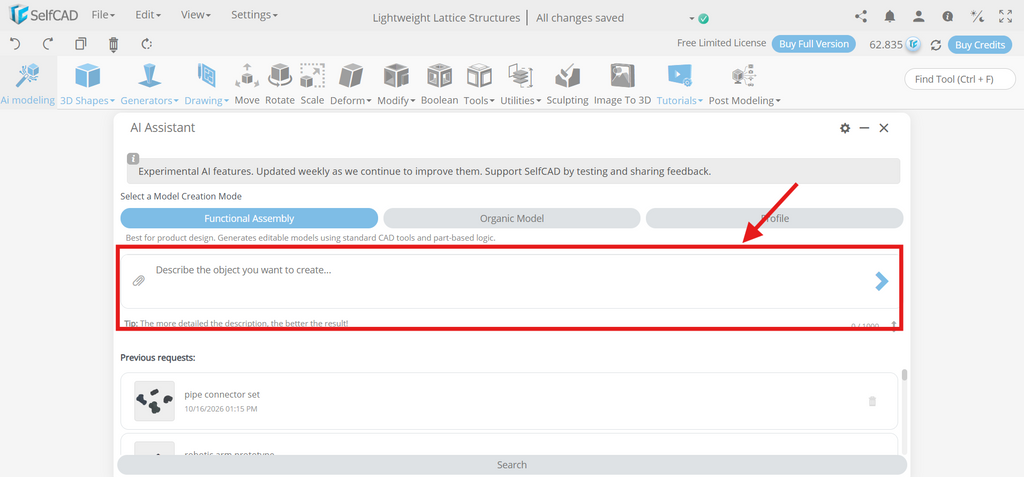
You can use the following prompt, as an example:
Prompt: Create a lightweight lattice structure using AI modeling. Design a 3D structure with a repeating network of interconnected struts, beams, and open spaces arranged in a regular geometric pattern. Use a cubic, triangular, or diamond-shaped lattice pattern to create an interesting balance between material efficiency and structural appearance. Include a solid outer frame with evenly distributed lattice cells throughout the interior. Ensure that the struts connect properly at their intersection points and maintain consistent thickness across the model. Keep the overall geometry clean, symmetrical, and suitable for further customization. Use functional assembly mode if separate structural components are required, allowing the outer frame and lattice sections to be modified independently. Make the structure compact and lightweight in appearance while avoiding excessively thin members that may be difficult to print. After generation, inspect the connections, cell spacing, and overall proportions from multiple angles. Refine the strut thickness, lattice density, and frame dimensions using editing tools. Prepare the final model for potential 3D printing and experimental design studies, noting that its actual strength and load-bearing capacity require engineering analysis and testing.
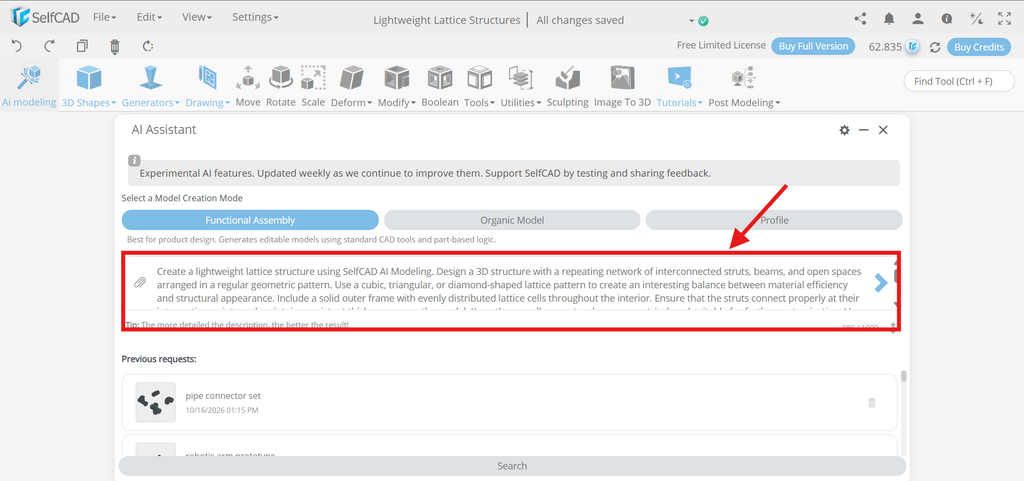
The planned lightweight lattice structure, including its general geometry, cell patterns, strut proportions, connection points, and interactions between connecting pieces, is better understood by the AI thanks to this thorough description, which produces a more cohesive initial 3D model.
Step 6: Generate the Model
Enter your request and, if desired, supply a reference image to start constructing the lightweight lattice structure. Next, select "Generate."
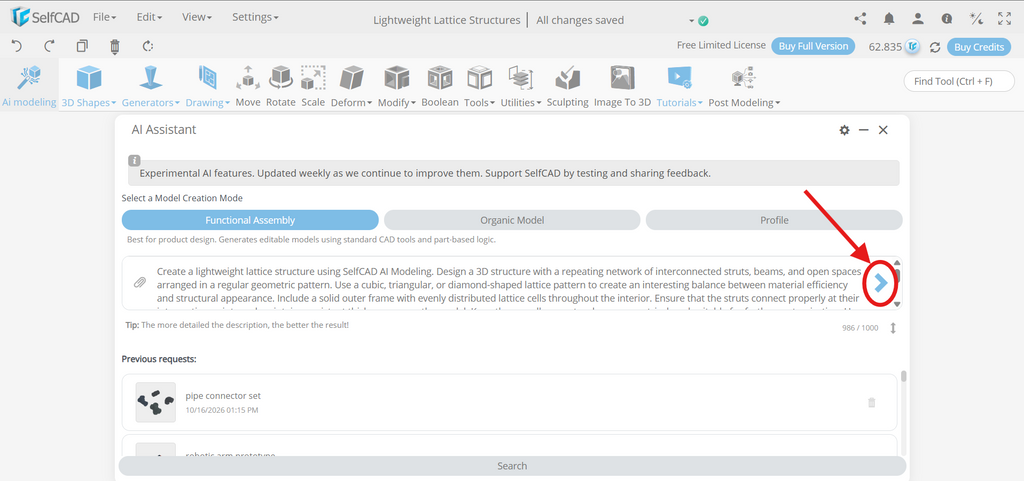
A preliminary 3D model with an interconnected network of struts, repeating cells, connecting nodes, and other structural features will be produced by SelfCAD AI Modeling based on your description.
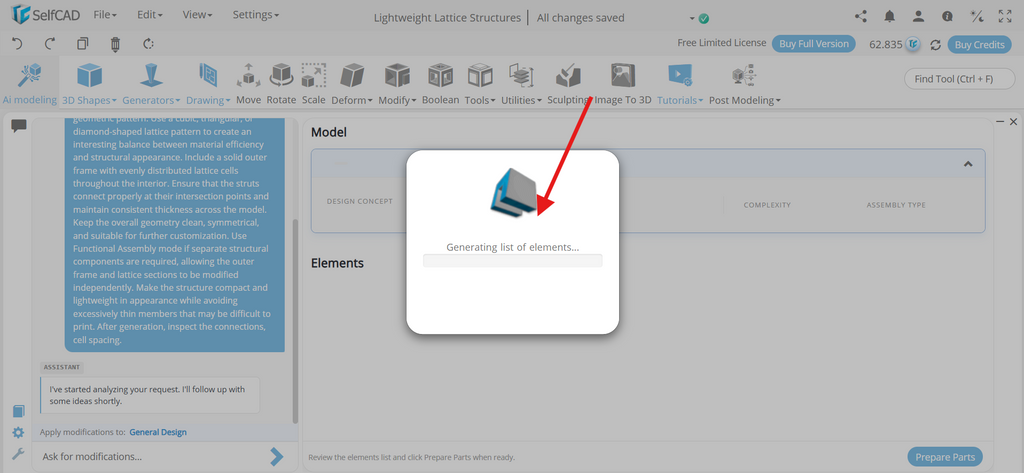
This is the difference between AI-assisted modeling and conventional manual modeling. Instead of manually constructing and joining each element from simple shapes, you describe your desired lattice structure and let AI generate the initial geometry. You can then use additional AI instructions and SelfCAD's traditional modeling tools to analyze the outcome, pinpoint areas that want improvement, and enhance the structure. To assist create a lightweight yet useful design, pay close attention to cell size, strut thickness, structural uniformity, overall dimensions, and 3D printability.
Ask for Modification:
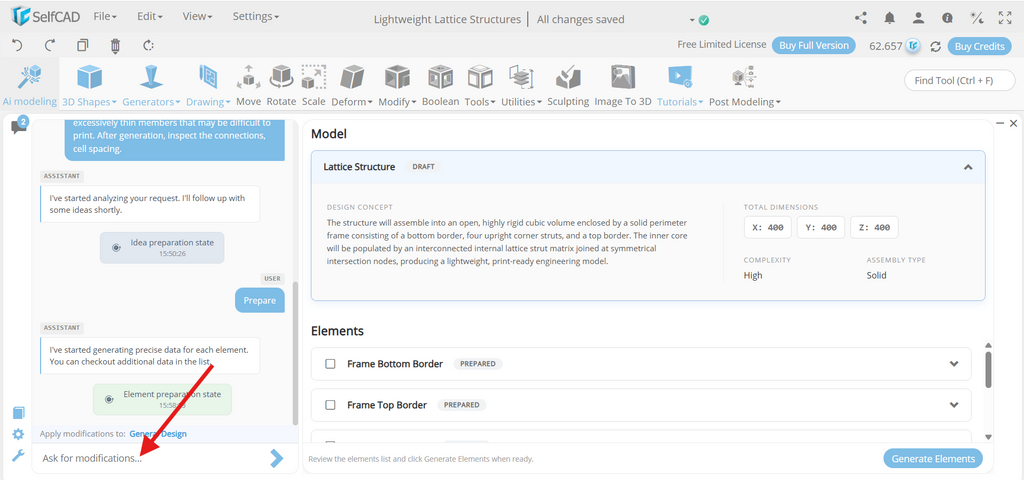
Once the lightweight lattice structure is produced, you can utilize AI to alter the design to suit your needs. Explain the planned modifications, such as thickening the strut, changing the cell size, altering the connection points, or altering the overall dimensions. AI can assist in enhancing structural alignment, spacing, and uniformity by modifying particular parts in accordance with your directions. This iterative method allows you to balance lightweight construction, strength, and 3D printability while improving the model and bringing your lattice structure closer to your intended design.
Step 7: Prepare Parts.
Both a design concept and a draft of the components will be produced by the AI assistant.
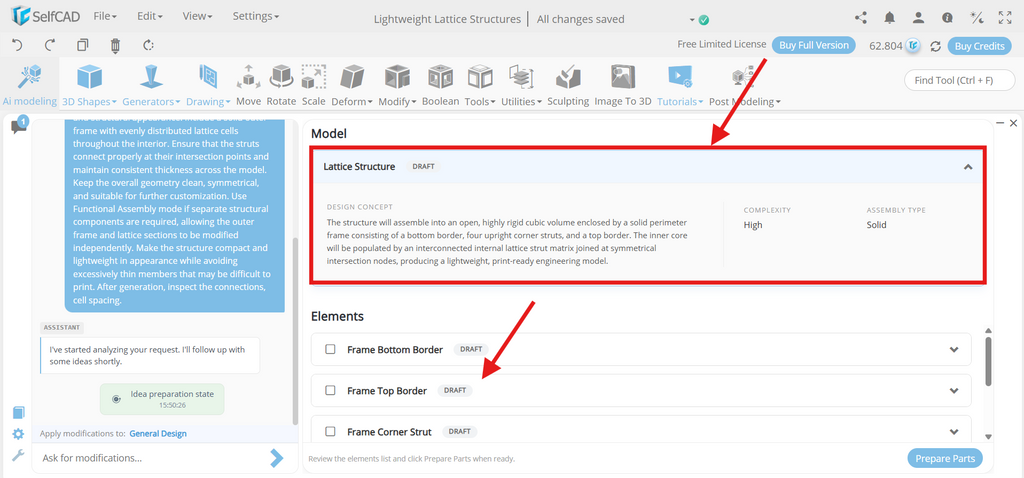
Click "prepare parts" now:
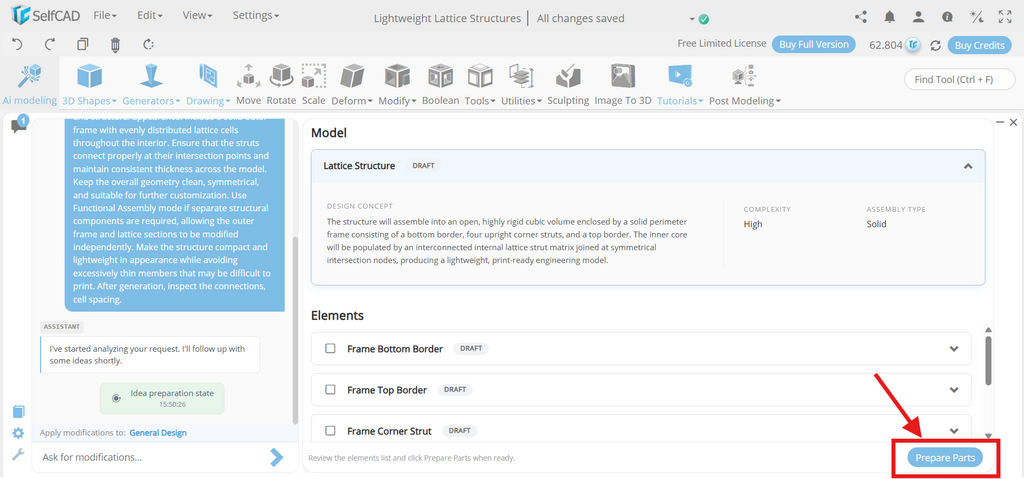
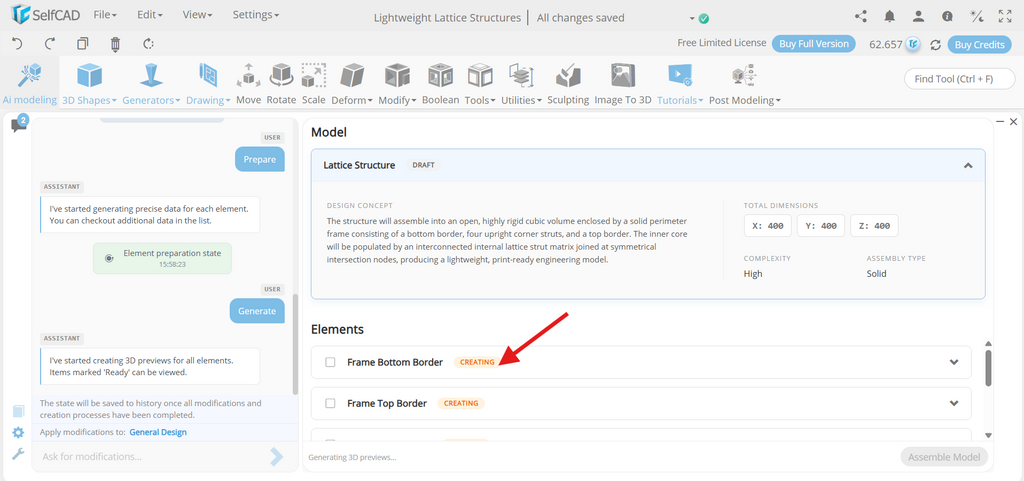
As we can see, the tool is preparing the elements:
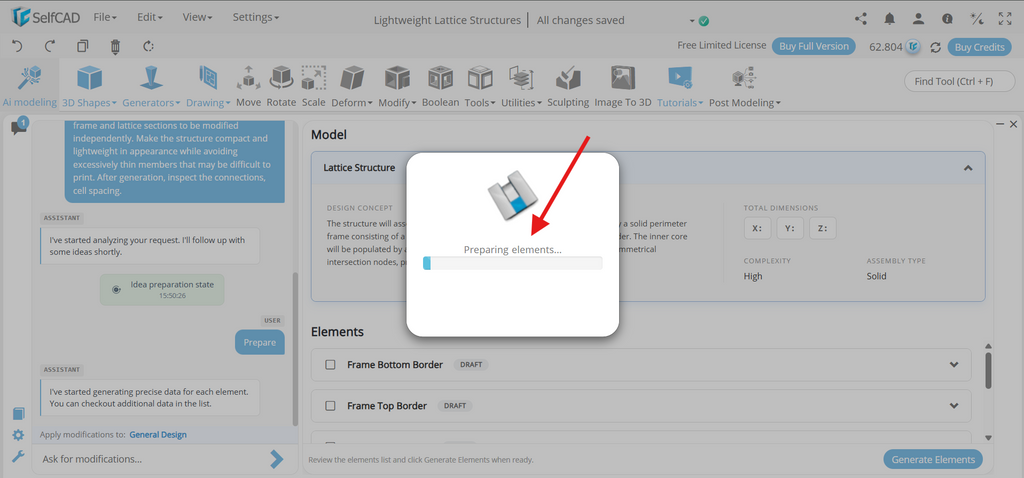
Step 8: Generate elements
Before creating the geometry, SelfCAD AI gives a design overview of the lightweight lattice structure that includes its concept, overall size, complexity, and structural arrangement. Make sure these elements align with the design you have in mind.
The primary elements are listed separately, including support sections, connecting nodes, repeating cells, interconnected struts, and other structural components. Choose the components that satisfy your design specifications.
Once you have reviewed your choices, click Generate Elements to construct the individual components. These elements will serve as the framework for your lightweight lattice structure, enabling you to arrange, alter, and improve the design in later phases.
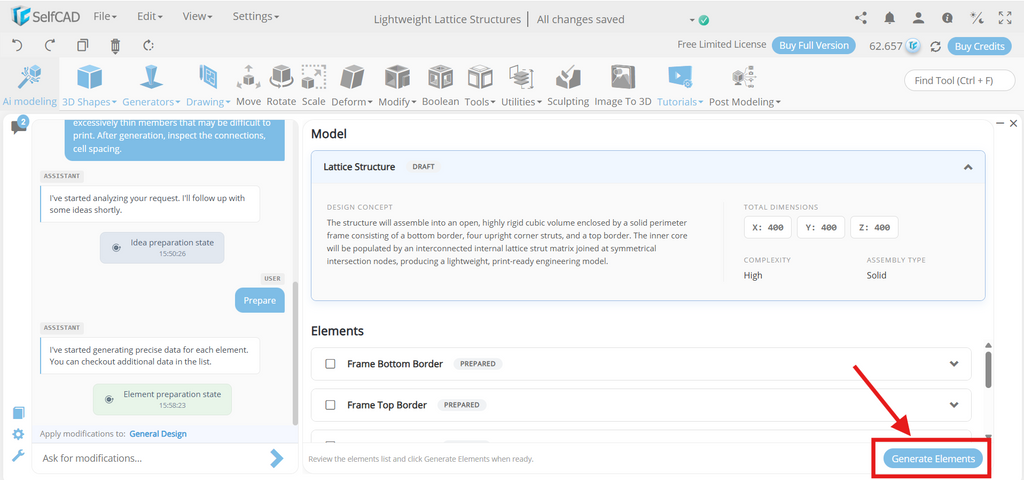
As SelfCAD AI creates the chosen elements of the lightweight lattice structure, the tool will show the Creating Elements status. Examine the created elements, including the supporting sections, connecting nodes, repeated cells, and interconnecting struts, when the procedure is finished. To make sure the lattice structure satisfies your design specifications, prepare these parts for additional assembly, modification, and refinement.
Step 9: Assemble Model
After the lightweight lattice structure's components have been created, click Assemble Model. In order to produce a full structure with interconnecting struts, repeated cells, connecting nodes, and supporting sections, SelfCAD will organize the chosen components in accordance with the intended design.
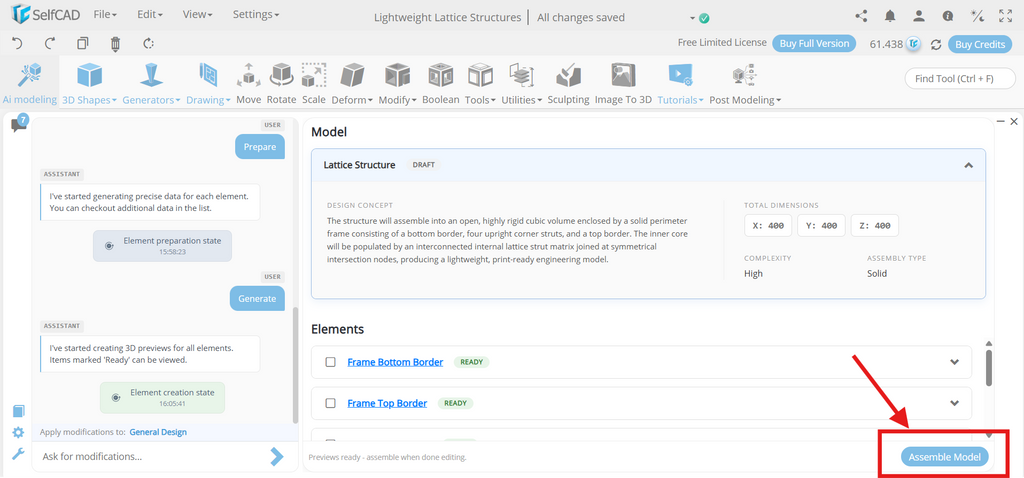
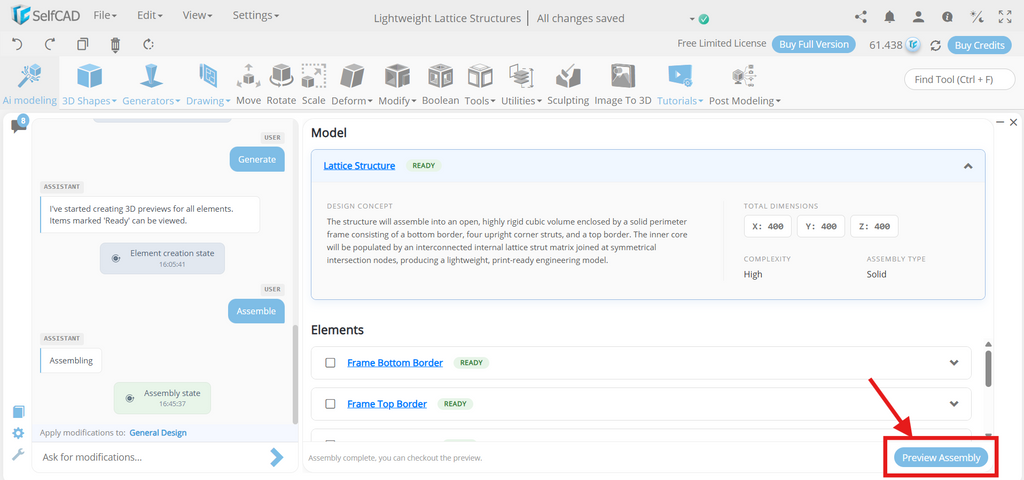
SelfCAD will integrate the produced parts into the lattice structure once you click Assemble Model. To examine the finished design and confirm the structural pieces' placement, alignment, measurements, and connections before making any more modifications, choose Preview Assembly. Before improving the model, this aids in locating any gaps, overlapping parts, or inconsistencies that would need to be fixed.
Step 10: Add the Lightweight Lattice Structure to the SelfCAD Scene
Now that you have created the lightweight lattice structure, add it to the SelfCAD scenario. The AI-designed design will be uploaded to the regular SelfCAD workspace, and you may use the regular modeling tools to tweak and improve the construct. Look for regions in struts, repetitive cells, connecting nodes, and supporting portions that need work. Change component thickness, cell dimension, spacing, and alignment for the desired arrangement of structure. You also can tweak individual components and improve the overall design using a range of tools such as Move, Rotate, Scale, and Stitch & Scoop. These modifications can be used for instructional displays, design exploration, prototyping, or 3D printing, preparing the lattice structure for such purposes.
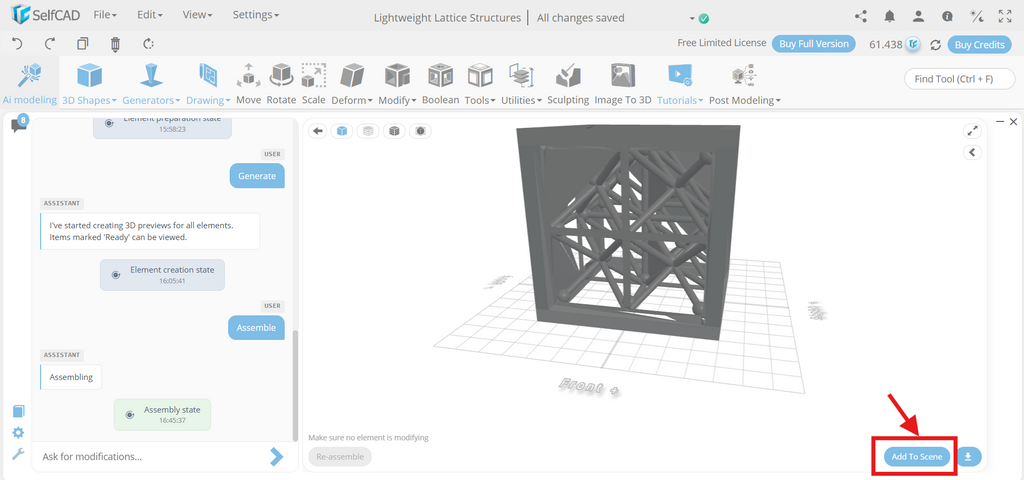
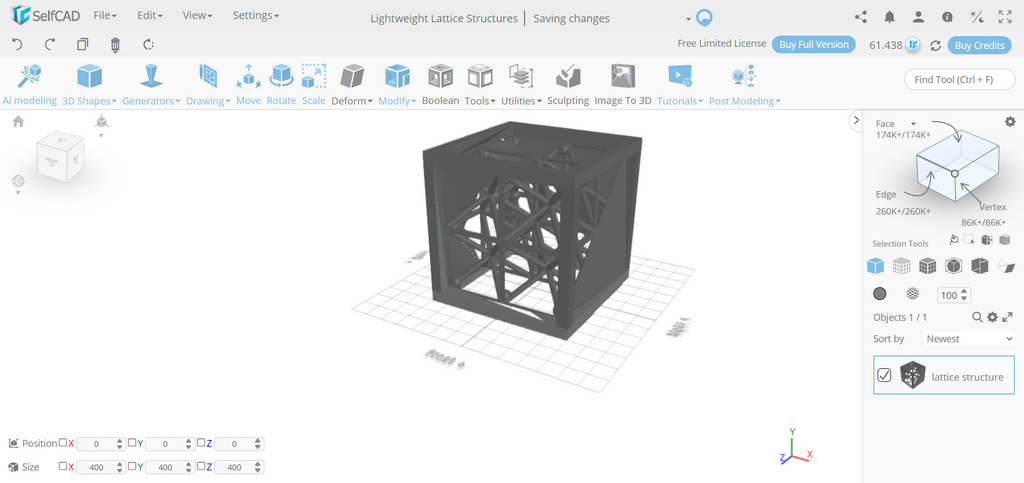
The final model looks like this:
Conclusion
SelfCAD AI Modeling simplifies robotic arm prototype design by translating written descriptions into an initial 3D model. After building the foundation, arm segments, joints, gripper, and connector pieces, users can change their layout and look. Using common modeling tools, the final model can be transformed into a detailed mechanical assembly for 3D printing, prototyping, or instructional presentations.