
How to Use SelfCAD AI Features to Create a Foldable Stool Design
Designing a 3D model from scratch can be difficult, especially if you are still learning how to use traditional modeling tools and procedures. It is frequently necessary to create simple forms, modify their size, arrange various components, and progressively improve the model. The AI features in SelfCAD make it simpler to get started. Instead of developing everything by hand, you can describe the object you have in mind and utilize a reference image to help the AI better understand its overall shape, structure, and appearance.
This blog will show you how to utilize SelfCAD's AI Modeling tool to design a foldable stool. You'll discover how a basic description and an optional reference image can be used to create an initial design. The normal modeling tools in SelfCAD can then be used to review and adjust the design. Whether you're designing for daily use, 3D printing, or experimenting with AI-assisted modeling, this method makes it simpler to transform a concept into a working 3D model.
Steps of Designing the Foldable Stool Using SelfCAD AI Modeling
We will create a foldable stool with a solid seat, folding legs, supporting joints, and rounded, smooth edges in this blog. Along the process, we will also go over a crucial AI modeling principle: the more accurately and explicitly you explain the shape, structure, folding mechanism, and features of your design, the better the AI will comprehend your idea and produce a useful 3D model.
Step 1: Launch the SelfCAD Editor
Start by launching the SelfCAD Editor and creating a new project:
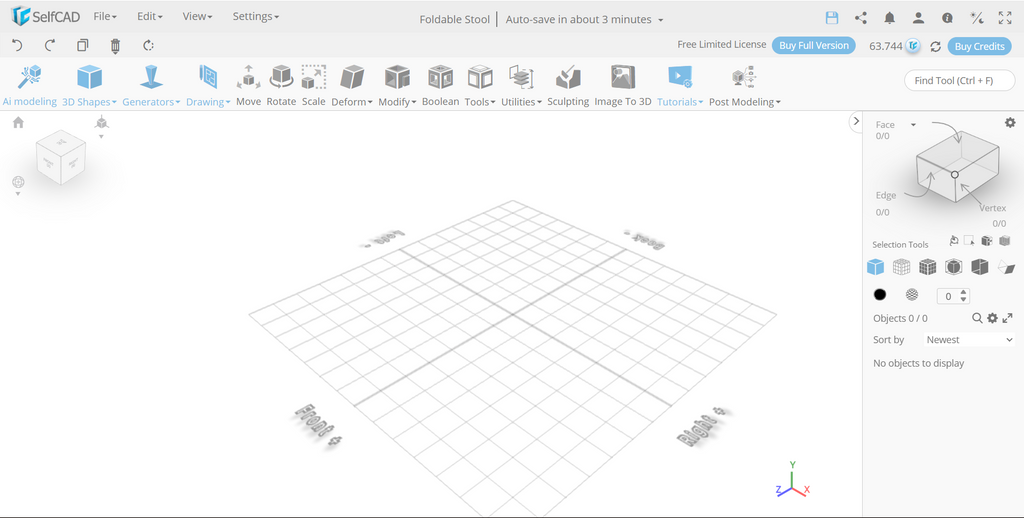
Before making any additional modifications or improvements, the primary geometry of the foldable stool will be determined for this project using the AI Modeling technology.
Step 2: Open AI Modeling
Inside the SelfCAD Editor, select AI Modeling:
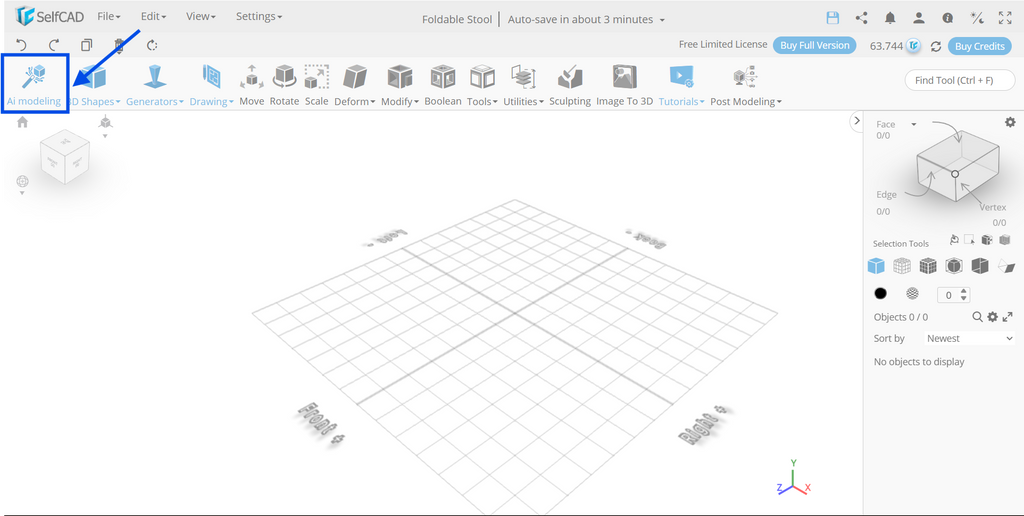
SelfCAD's AI Modeling interface makes it simple to communicate your design ideas using a text prompt. Just give a brief explanation of the folding stool's form, characteristics, construction, and purpose. Depending on your project, SelfCAD provides a variety of AI generation techniques, assisting you in selecting the strategy that best fits your design and intended outcome.
Step 3: Choose the Appropriate Creation Mode
For the foldable stool, Select Functional Assembly:
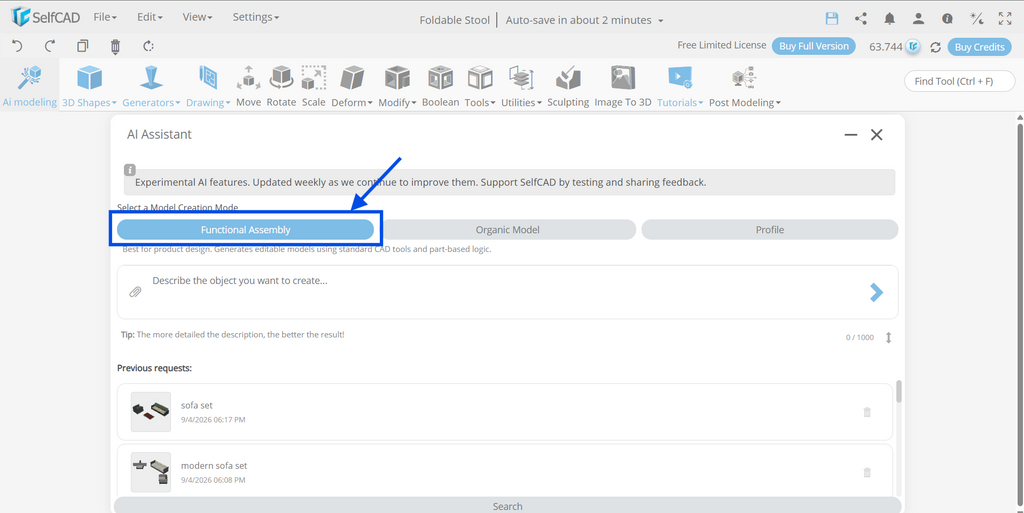
A strong seat, folding legs, support bracing, hinges, and connecting joints are some of the separate components that make up a foldable stool. Functional Assembly is the best option for designs in which every part has a distinct purpose and functions as a whole. When developing an AI prompt, this method also pushes you to think about the function, layout, movement, and relationship of each component.
Step 4: Prepare a Reference Image
It is entirely optional to utilize a reference image. It's not required.
You can include a reference image to aid the AI assistant in comprehending your idea, style, or desired result.
But the most important element is the prompt. The AI assistance tool should be able to understand and do the task mostly from the written instruction, even without a reference image.
Step 5: Write the AI Modeling Prompt
This launches the AI Modeling interface, where you may give SelfCAD detailed instructions on how to make a foldable stool.
Give a description of the foldable stool you wish to make with SelfCAD. Its purpose, size, seat, folding legs, support structure, hinges, connections, shape, and general orientation should all be included in a thorough prompt. SelfCAD can better grasp your design and provide a working initial model that you may further refine if you provide a more detailed description.
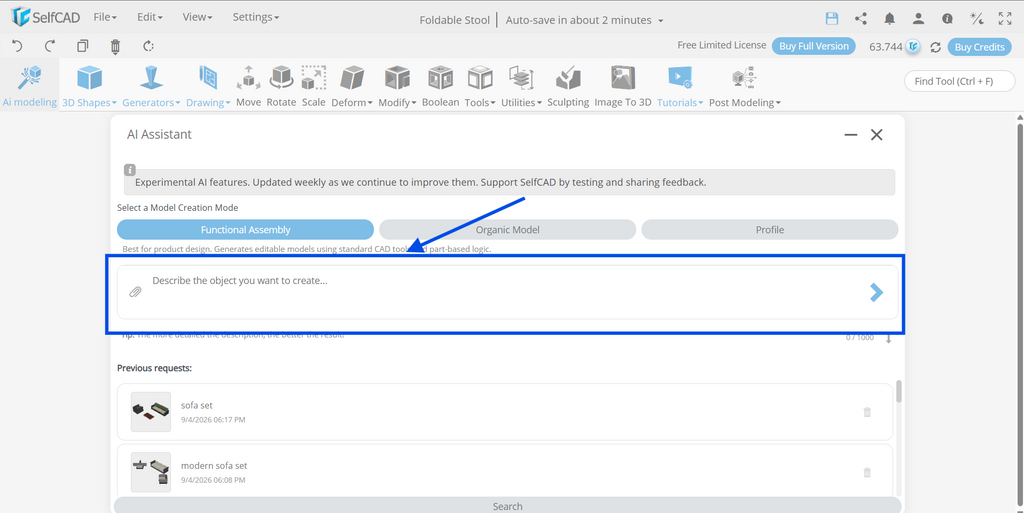
You can use the following prompt, as an example:
A modern, compact foldable stool designed for everyday home and outdoor use. Lightweight yet strong metal frame with a durable cushioned seat, sleek minimalist design, easy one-step folding mechanism, anti-slip rubber feet, and a convenient carrying handle. Show the stool in both folded and unfolded positions, with realistic materials, clean product detailing, ergonomic proportions, studio lighting, soft shadows, white background, premium product photography, photorealistic, high resolution, 3/4 angle view.
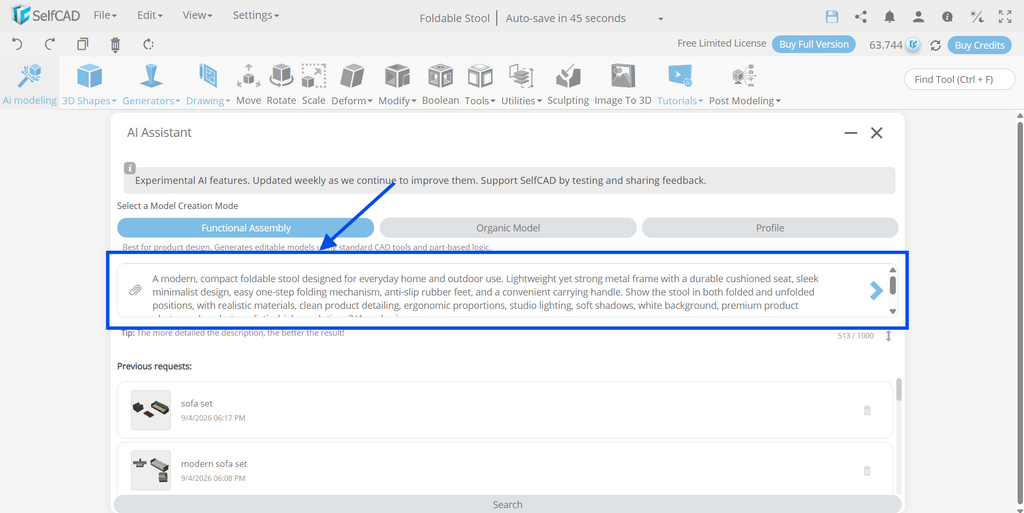
This kind of structured description helps communicate the design intent more clearly.
Step 6: Generate the Model
Click Generate after entering the prompt and attaching the reference image (which is optional).
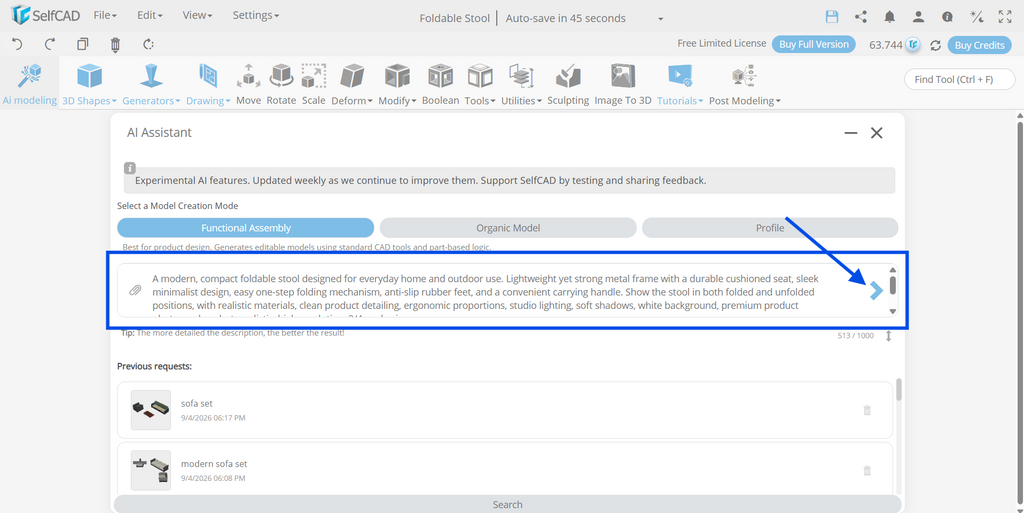
SelfCAD AI will generate the proposed 3D model after processing the instructions:
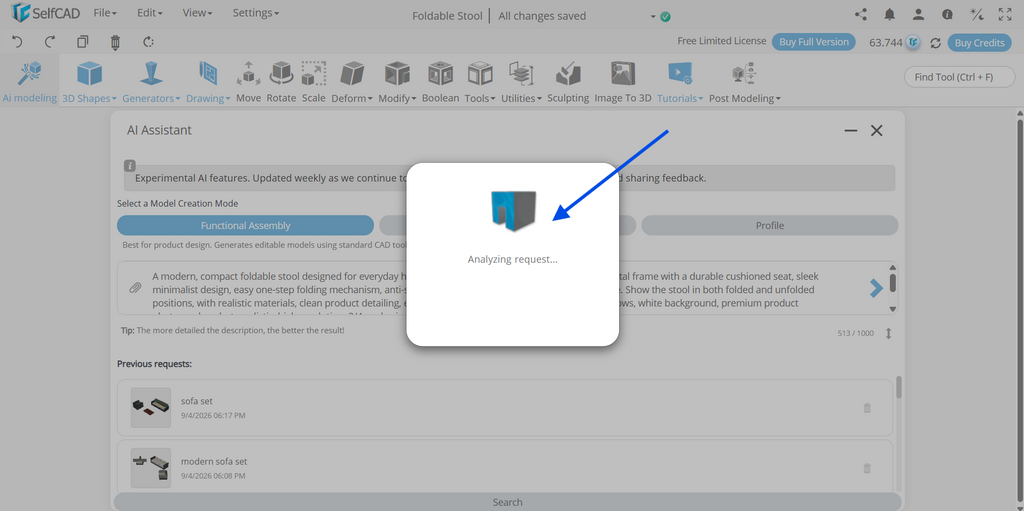
AI-assisted modeling varies from traditional modeling in this way. You first specify your intended design and let AI generate the initial geometry, as opposed to beginning with simple shapes and making manual tweaks.
A design concept and sketch of the foldable stool's components, including the seat, folding legs, support structure, hinges, and connecting sections, will be produced by the AI Assistant. After that, you can review the created model and make additional changes using SelfCAD's integrated modeling tools.
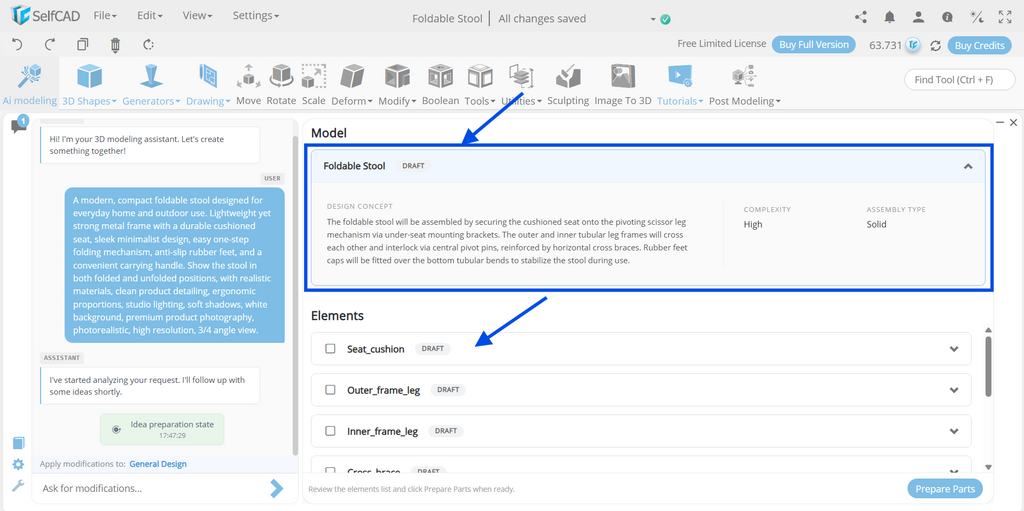
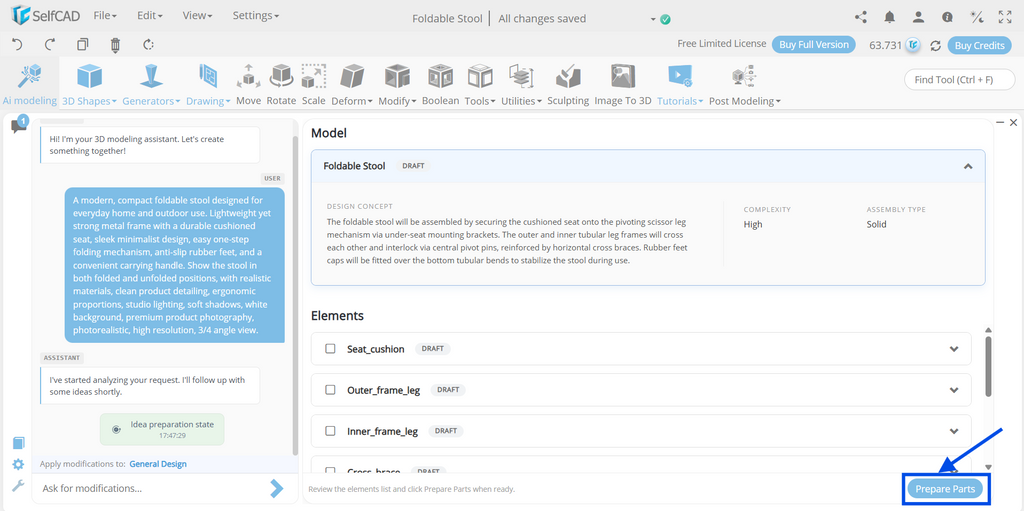
Step 7: Prepare Parts
Click "prepare parts" now:
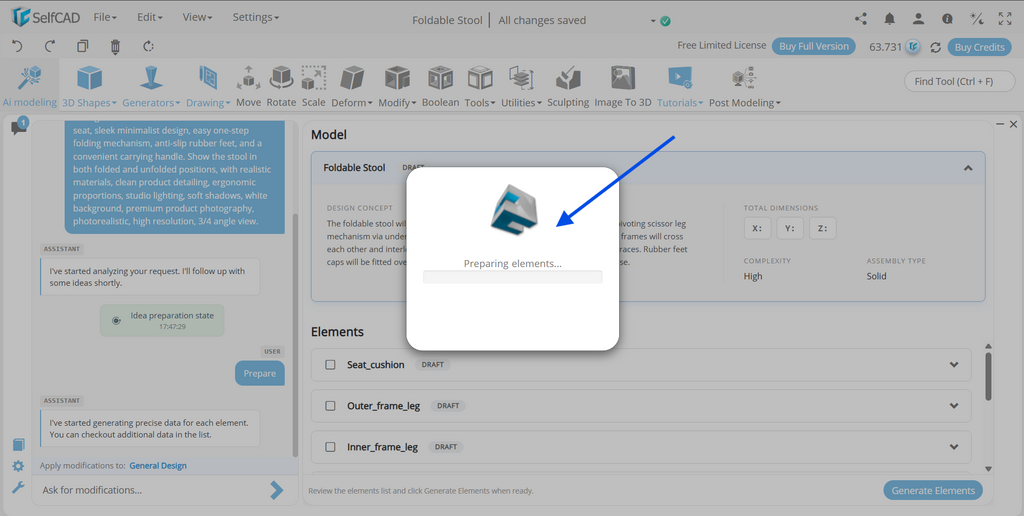
The tool is now preparing elements, as you can see:
Ask For Modification:
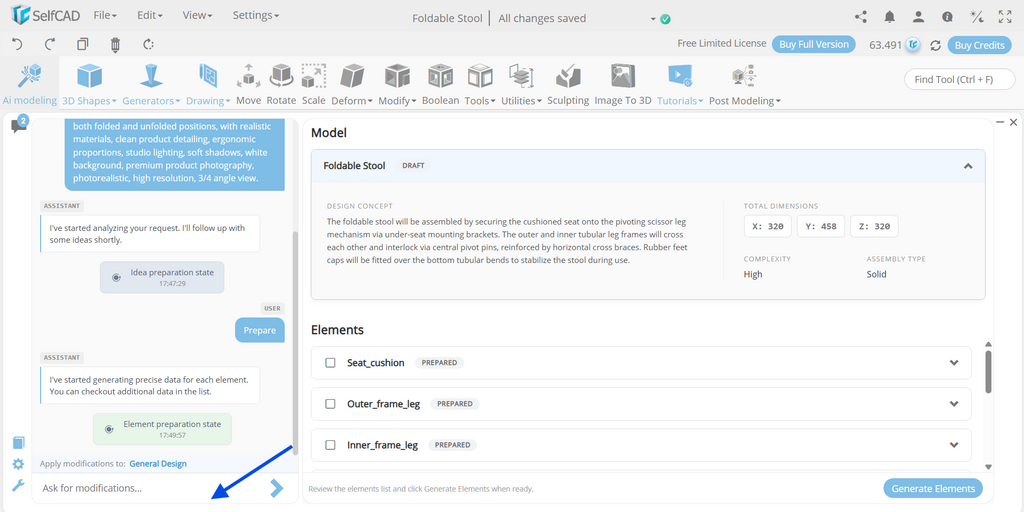
When your components are complete, you can use AI to make any necessary adjustments to advance your design. Just explain the modifications you have in mind, whether they involve resizing, reshaping, repositioning, or customizing a specific component. As seen in the above image, the AI will adjust the chosen piece in accordance with your directions, making it simpler to obtain the ideal foldable stool functionality and appearance.
Step 8: Generate Elements
Click Generate Elements:
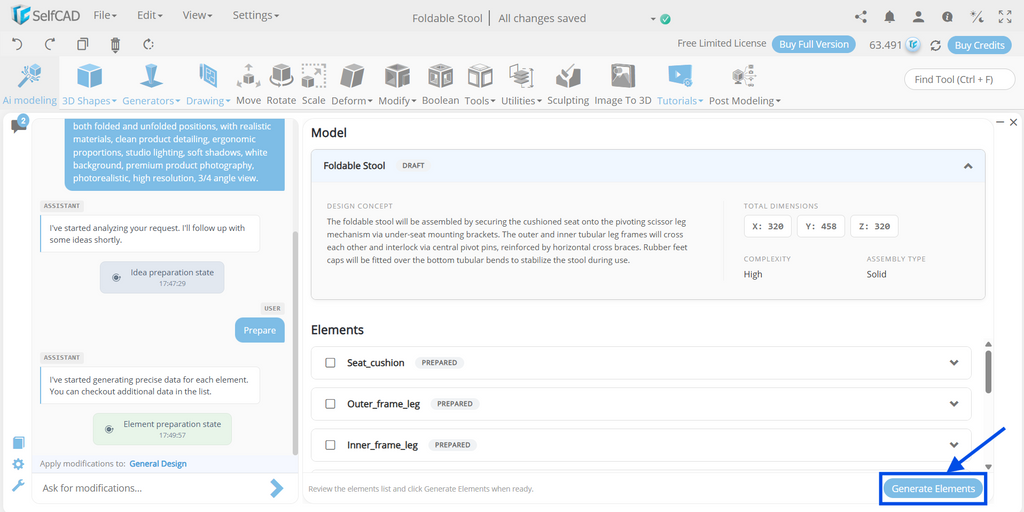
The tool will show that the elements are being created:
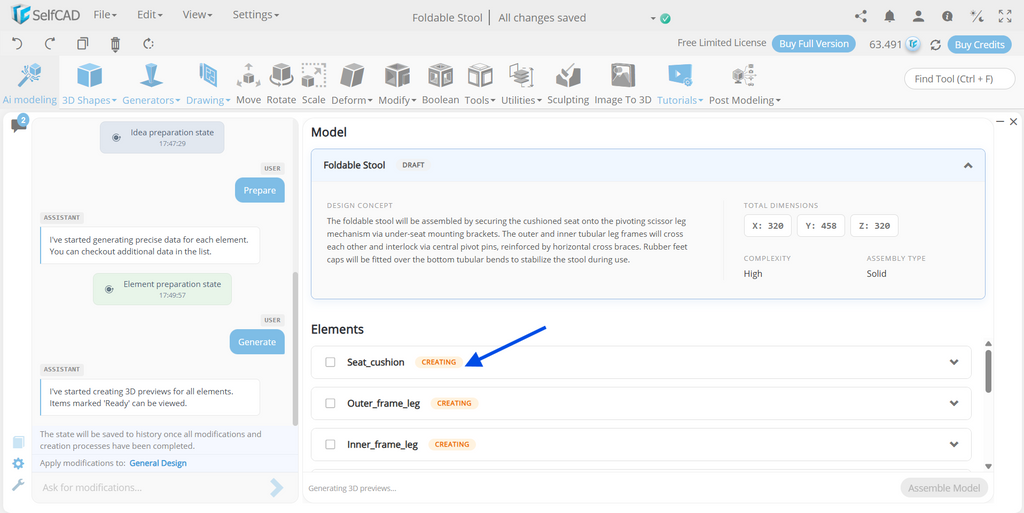
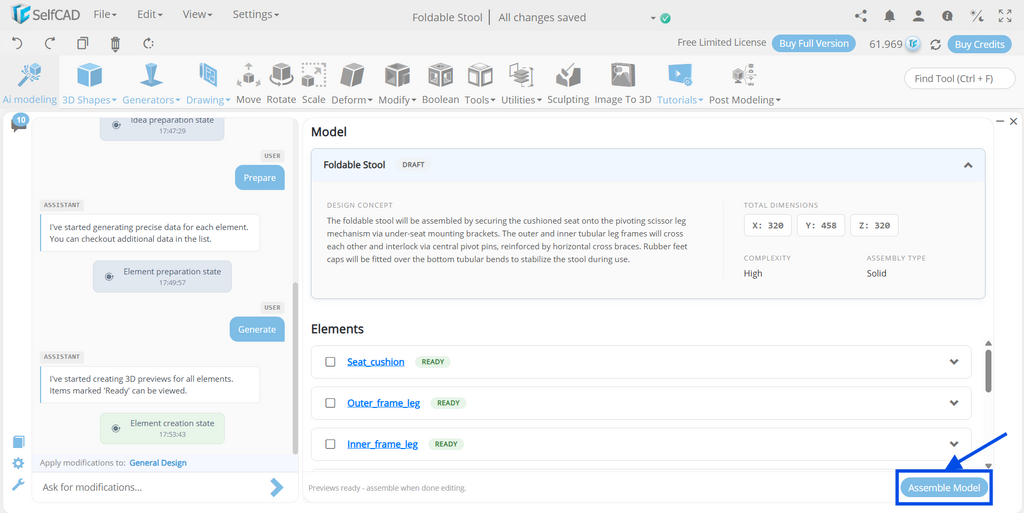
Step 9: Assemble Model
Click Assemble Model when the components are prepared.
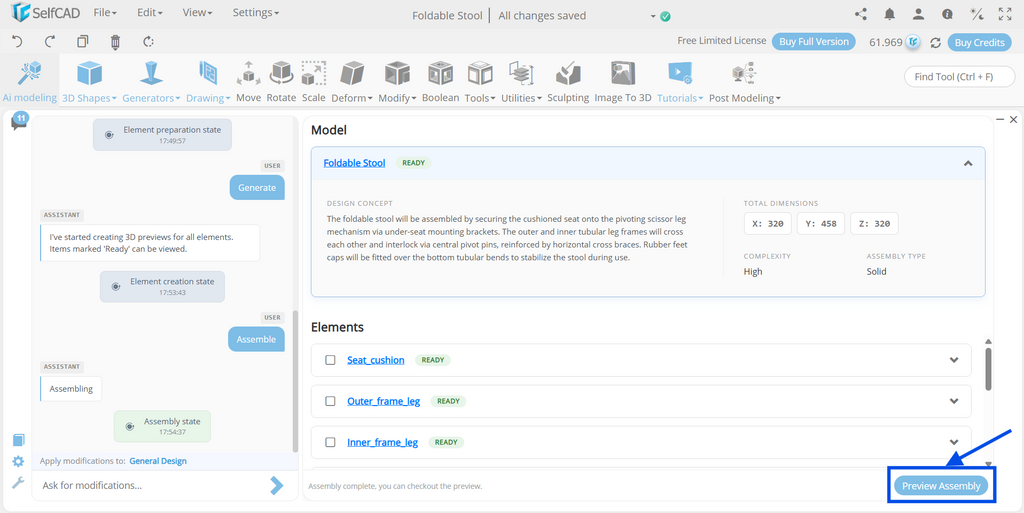
Before download the model, preview assembly;
Step 10: Add the Magnet to the Scene
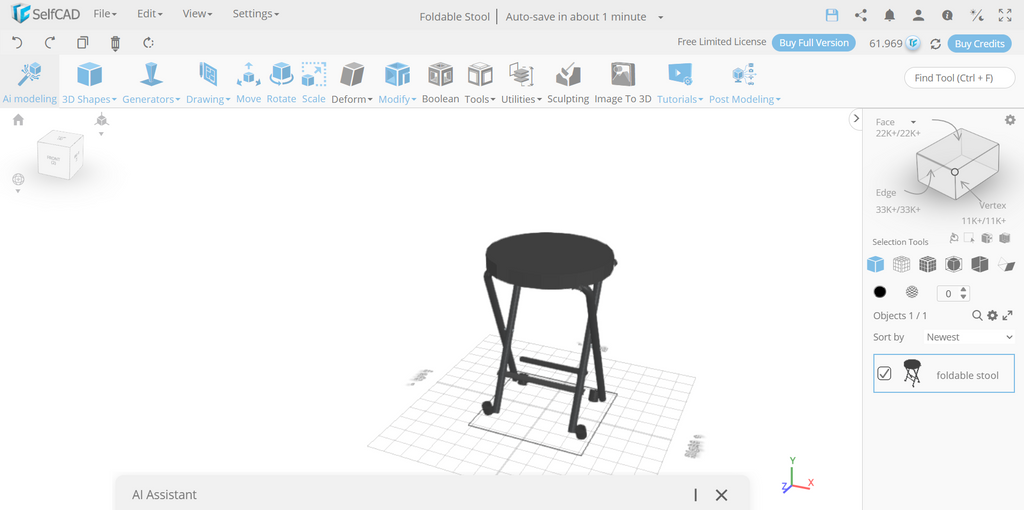
If you are satisfied with the result, add the model to the SelfCAD scene. At this stage, you may use the normal modeling tools in your usual SelfCAD workspace to further refine and enhance the AI-generated foldable stool.
This shift is crucial since AI modeling does not have to be the last step in the procedure. Rather, it supplies the initial geometry, and you have more control and freedom over the final design thanks to SelfCAD's standard tools.
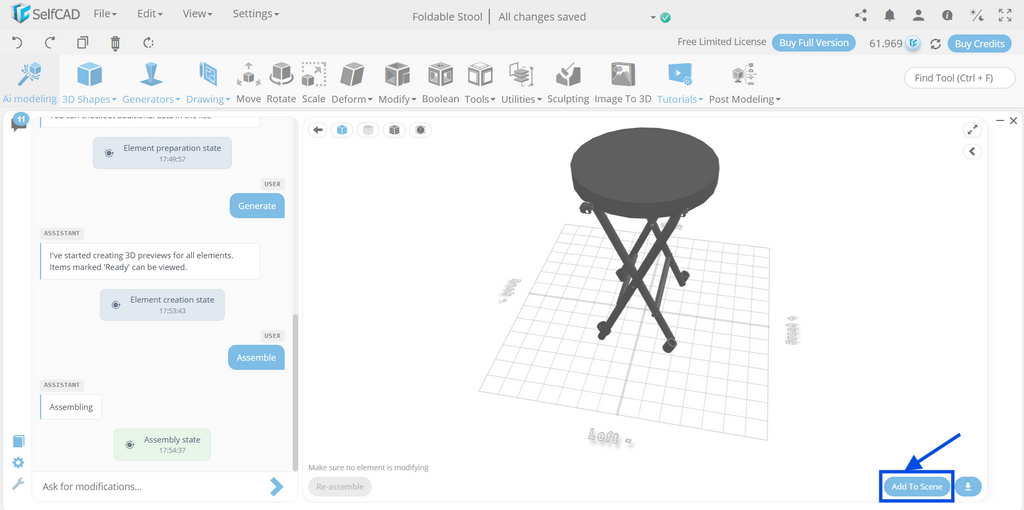
The resulting model looks like this:
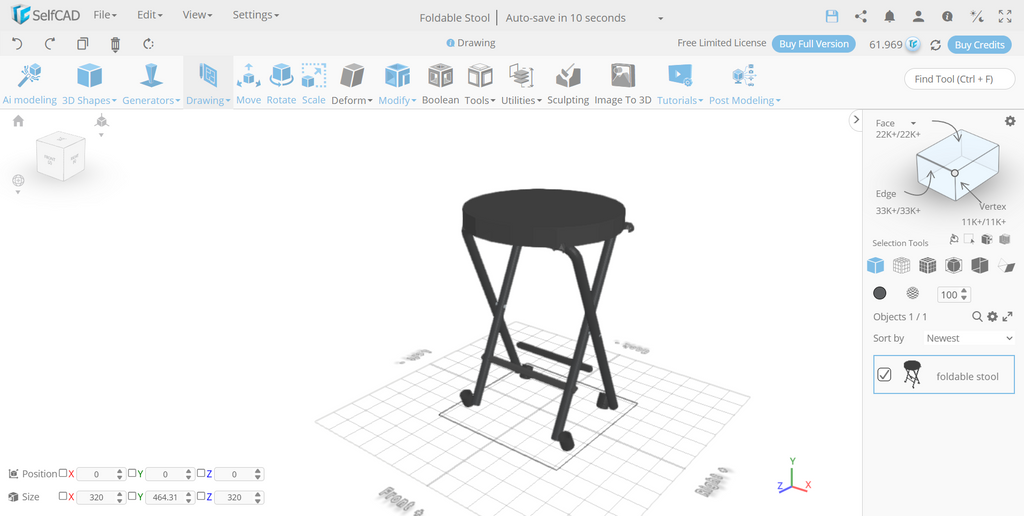
The model is now prepared:
Understanding the AI Modeling Workflow
A simple and consistent method for AI-assisted 3D modeling is demonstrated by the foldable stool:
AI Modeling → Describe → Reference → Ask for Modification → Generate → Review → Modify → Final Model
The most important learning is that AI modeling is more complex than just selecting Generate and accepting the initial outcome. Give a thorough description of the stool first, and if needed, include a reference photo. Examine the original model's shape, proportions, seat, folding legs, support system, hinges, and general appearance once SelfCAD creates it. Use the usual modeling tools in SelfCAD to make any necessary adjustments to the design and fine-tune the details until you get the desired outcome. By fusing AI-generated geometry with your own artistic choices and adjustments to produce a useful, personalized foldable stool, this method turns AI into a helpful design aid rather than a substitute for the designer.
Conclusion
SelfCAD AI Modeling's design of a foldable stool serves as an example of how artificial intelligence can streamline the early phases of 3D modeling. Using text instructions and an optional reference image, you can convey your design concept without having to painstakingly construct the complete stool from simple shapes.
To get better outcomes, it's crucial to be as exact as possible. Explain the purpose, parts, dimensions, shape, seat, folding legs, support structure, hinges, connections, and orientation of the stool. Although it is not required, you may additionally submit a reference image to provide the AI with more visual context. To construct a useful and personalized foldable stool, use the usual modeling tools in SelfCAD to examine the geometry, make modifications, and enhance the features.