
Design a Parametric Bridge Concept: Step by step Guide
Developing a 3D bridge concept from the start might be difficult, especially if you are still unfamiliar with traditional modeling tools and approaches. Building structural parts, determining dimensions, arranging components, and fine-tuning proportions can all require numerous manual processes. SelfCAD's AI features make getting started easier. Instead of manually building each element, you can explain the bridge concept and optionally include a reference image to help the AI comprehend its general structure, form, and appearance.
This blog article will show you how to design a parametric bridge concept using SelfCAD's AI modeling capabilities. You will learn how to create an initial bridge design using a thorough description and an optional reference image. The resulting model can then be examined and improved with SelfCAD's regular modeling tools. This method makes it easier to investigate bridge designs, modify dimensions and proportions, and create a flexible concept for future design experimentation.
Steps of Designing the Parametric Bridge Concept Using SelfCAD AI Modeling
In this blog article, we will create a parametric bridge concept that has a defined structural arrangement, supporting elements, and meticulously proportioned components. Along the way, we will look at an important AI modeling principle: the more clearly and precisely you describe the bridge's structure, dimensions, geometry, parameters, and design features, the better the AI will understand your concept and generate a detailed 3D model that can be refined further.
Step 1: Launch the SelfCAD Editor
Start by launching the SelfCAD Editor and creating a new project:
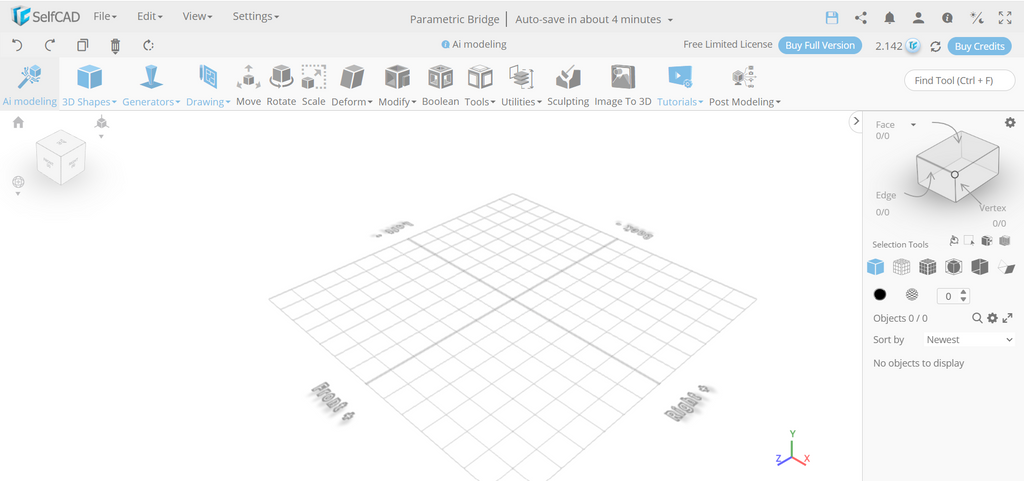
For this project, we will use the AI Modeling function to determine the fundamental geometry and structural arrangement of the parametric bridge design before making any more changes or revisions.
Step 2: Open AI Modeling
Inside the SelfCAD Editor, select AI Modeling:
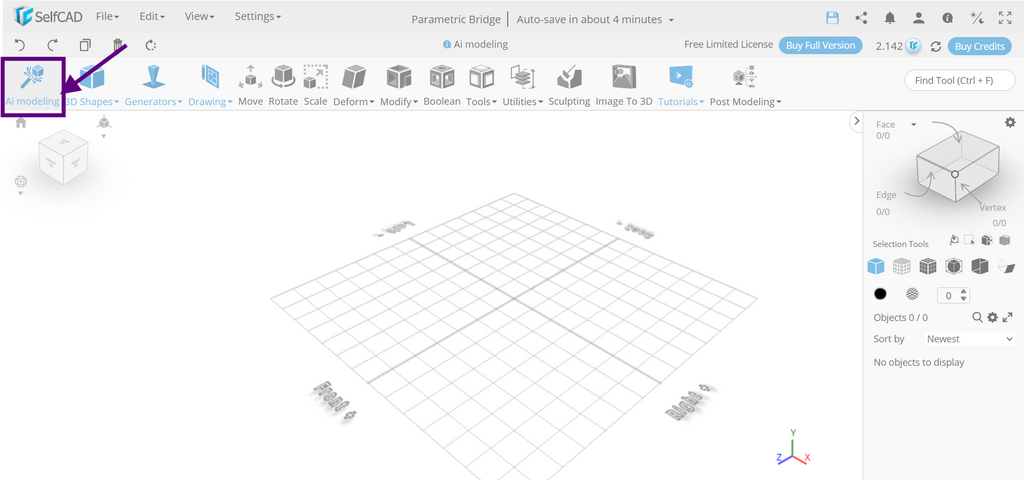
The AI Modeling interface in SelfCAD allows you to easily describe your parametric bridge design via a text prompt. Describe the bridge's overall form, structural features, dimensions, parameters, and intended function to ensure that the AI understands your design. Depending on your project needs, SelfCAD provides various AI generating methods, assisting you in selecting a strategy that is appropriate for the type of bridge concept and the desired outcome.
Step 3: Choose the Appropriate Creation Mode
For the parametric bridge concept, Select Functional Assembly:
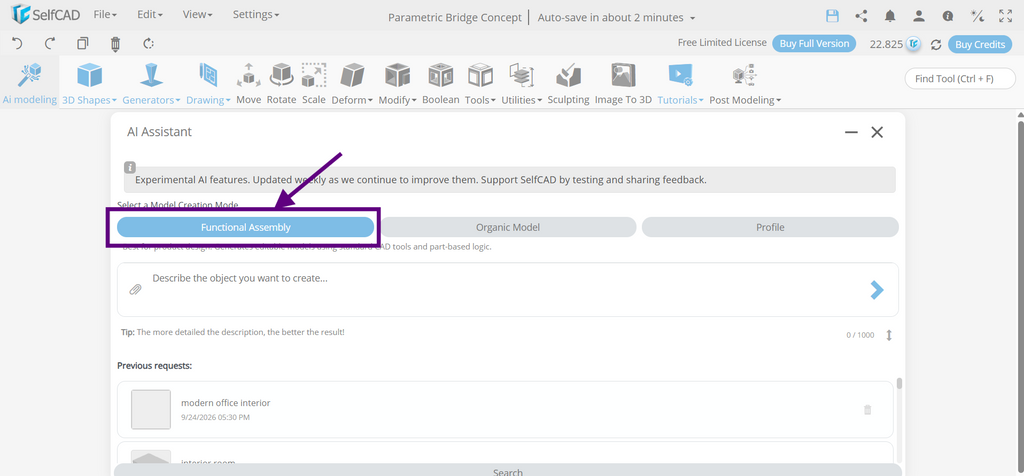
The AI Modeling interface in SelfCAD allows you to easily describe your parametric bridge design via a text prompt. Describe the bridge's overall form, structural features, dimensions, parameters, and intended function to ensure that the AI understands your design. Depending on your project needs, SelfCAD provides various AI generating methods, assisting you in selecting a strategy that is appropriate for the type of bridge concept and the desired outcome.
Step 4: Prepare a Reference Image
The use of reference images is entirely optional. It is not necessary.
You can attach a reference image to help the AI assistant comprehend your concept, style, or desired outcome.
However, the prompt is the most important component. Even without a reference image, the AI aid tool should be able to understand and complete the task based solely on the written request.
Step 5: Write the AI Modeling Prompt
This opens the AI Modeling interface, where you can provide SelfCAD explicit directions for building a parametric bridge concept.
Describe the bridge you wish to build with SelfCAD, including the structural type, dimensions, deck, supports, beams, arches or cables, connections, proportions, parameters, and overall orientation. A detailed prompt offers the AI a better understanding of your intended structure and design relationships, allowing it to build a more realistic first bridge model, which you may then enhance and change using SelfCAD's modeling tools.
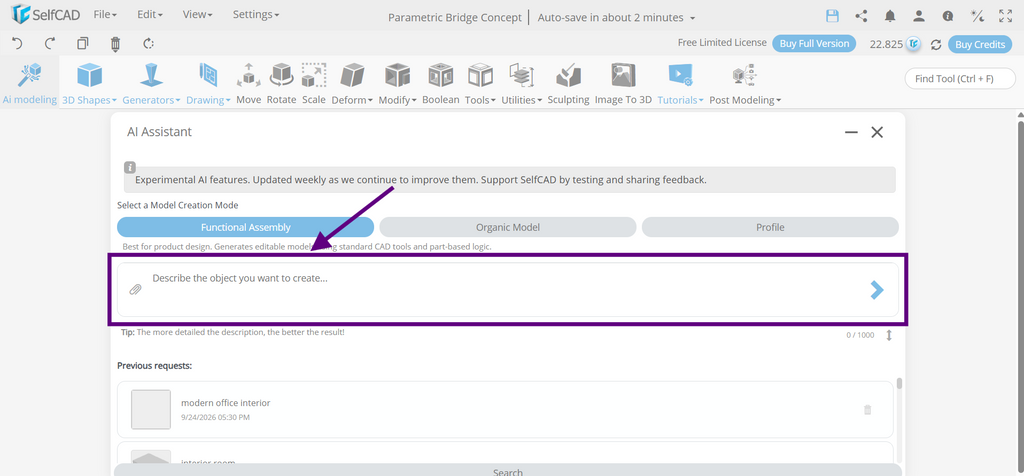
You can use the following prompt, as an example:
Create a detailed parametric bridge concept as a 3D model. Design a modern pedestrian bridge with a long, slightly curved or gently arched deck supported by two main structural beams. Include evenly spaced vertical support columns, side railings, and a repeating pattern of structural elements along both sides of the bridge.
Use consistent dimensions, spacing, and proportions throughout the design so that the bridge can be easily modified parametrically. Add a smooth walking surface with a slight upward arch toward the center, sturdy foundations at both ends, and symmetrical structural components. Include cross-bracing between the main supports to improve the visual representation of structural stability.
Keep the geometry clean and organized, with clearly separated deck, supports, railings, beams, and braces. Use smooth edges and a modern engineering-inspired appearance. Ensure all components are properly aligned, evenly spaced, and proportionally scaled. Create the model as a conceptual bridge suitable for further editing, dimension adjustments, and refinement in SelfCAD.
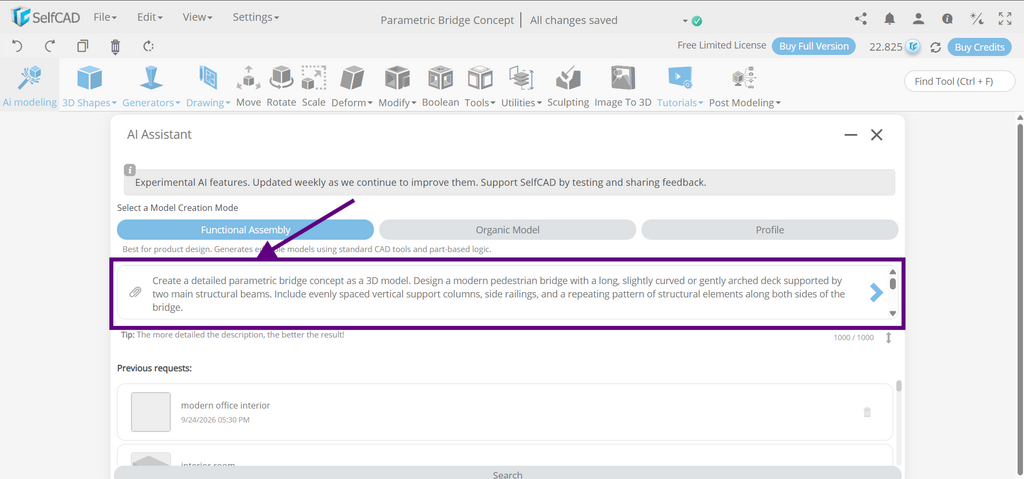
This kind of structured description helps communicate the design intent more clearly.
Step 6: Generate the Model
Click Generate after entering the prompt and attaching the reference image (which is optional).
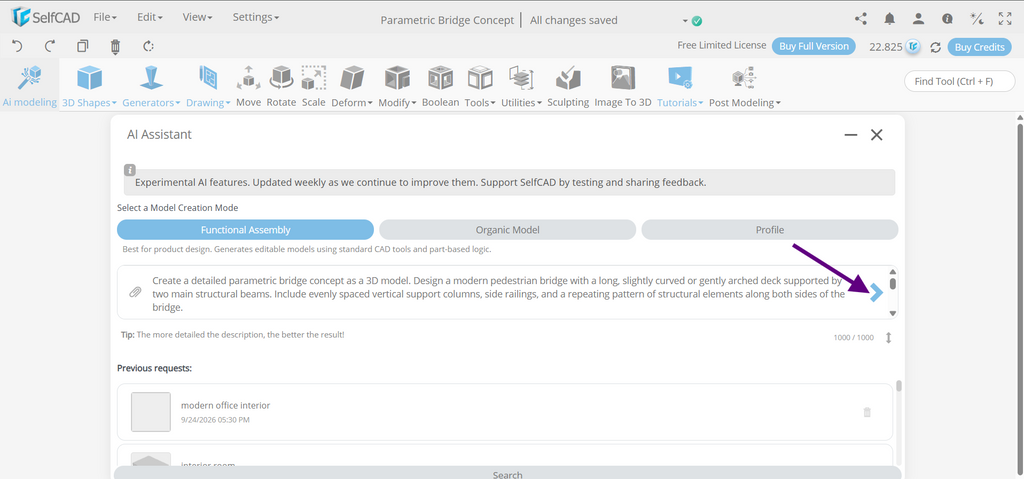
SelfCAD AI will generate the proposed 3D model after processing the instructions:
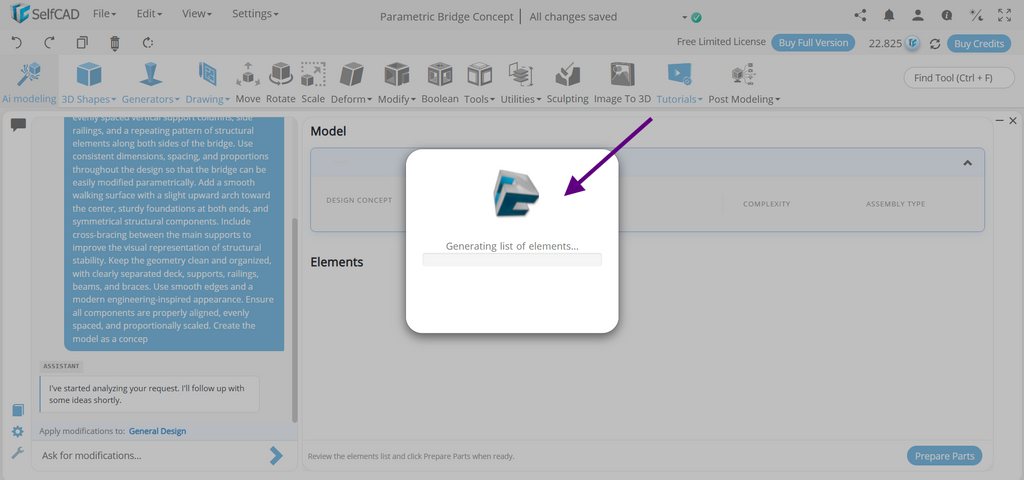
This shows how AI-assisted modeling varies from traditional 3D modeling. Instead of starting with basic shapes and creating the structure piece by piece, you explain your desired bridge concept and let the AI choose the initial geometry.
The AI Assistant will create a first design concept and draft of the bridge's primary structural parts, including the deck, supports, beams, arches, cables, and any other components indicated in your prompt. The resulting model can then be reviewed and adjusted as needed using SelfCAD's built-in modeling capabilities, including dimensions, proportions, structural parts, and other details.
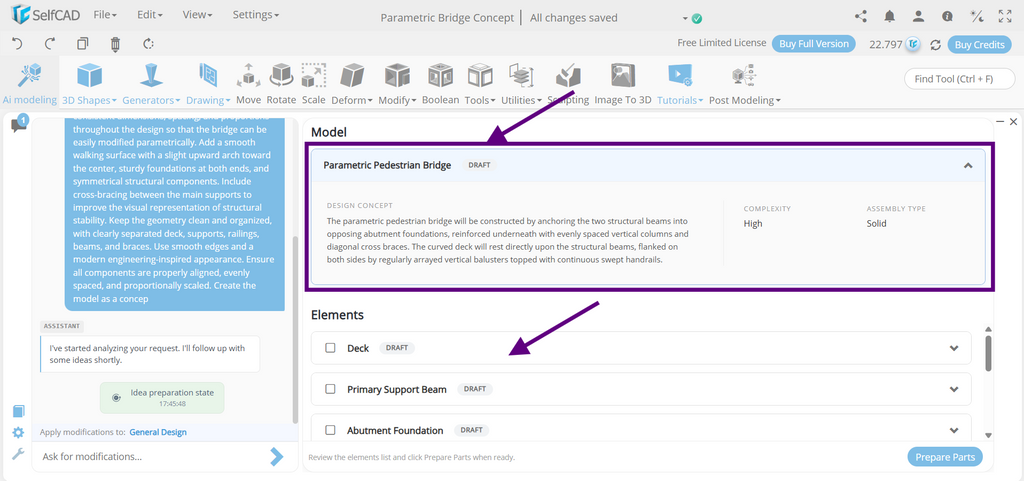
Step 7: Prepare Parts
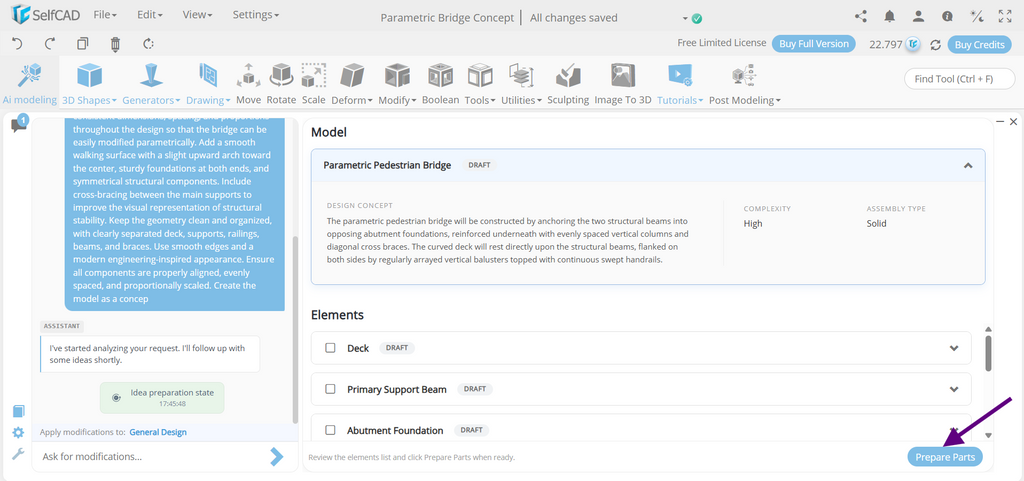
Click "prepare parts" now:
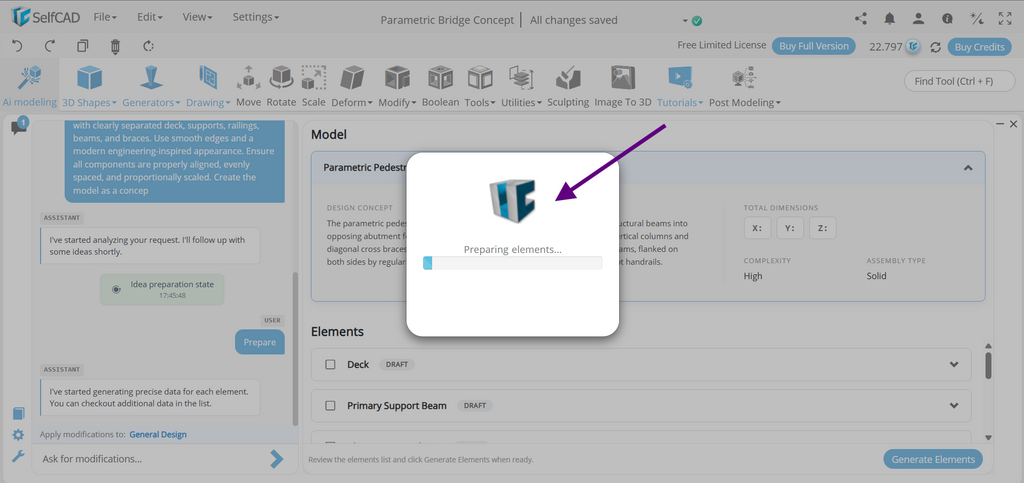
The tool is now preparing elements, as you can see:
Ask For Modification:
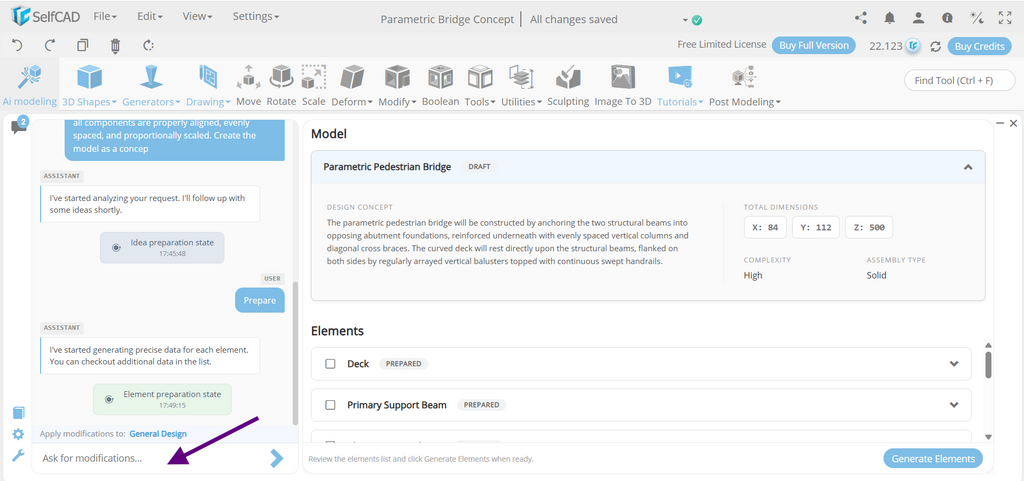
Once the bridge elements have been prepared, you can use AI to make additional changes. If you need to resize, modify, reposition, or customize a structural piece, simply offer explicit instructions outlining the modifications you wish to make. The AI will apply the requested improvements to the selected element, allowing you to change the bridge's geometry, proportions, supports, connections, and other design characteristics while generating the desired parametric concept, as seen in the image above.
Step 8: Generate Elements
Click Generate Elements:
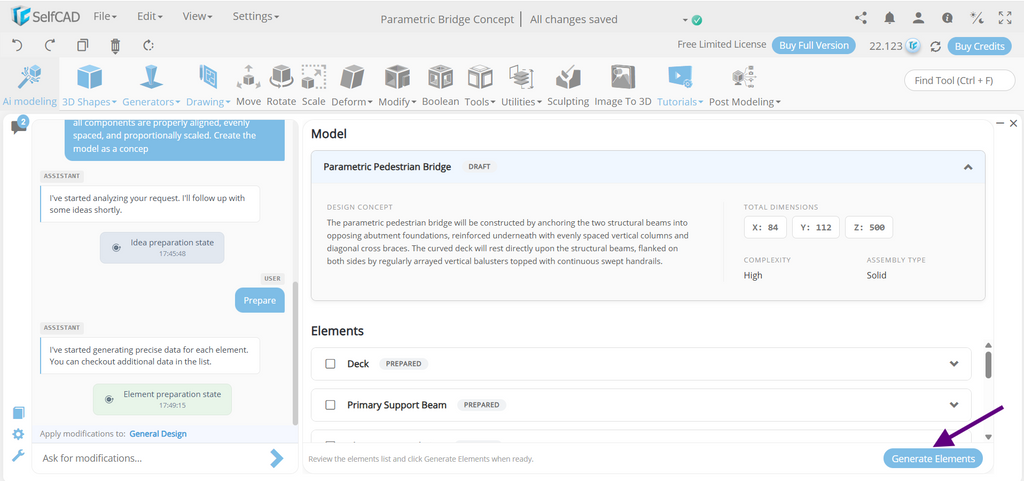
The tool will show that the elements are being created:
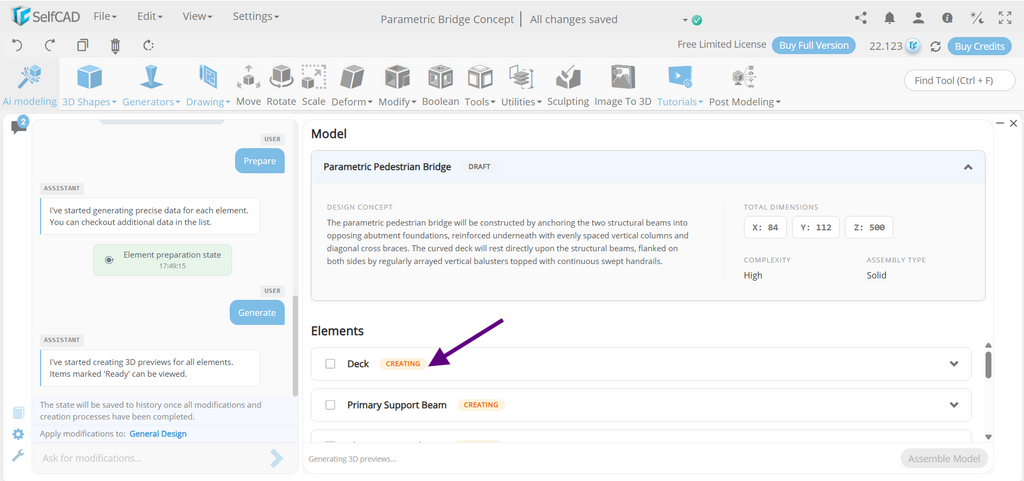
Step 9: Assemble Model
Click Assemble Model when the components are prepared.
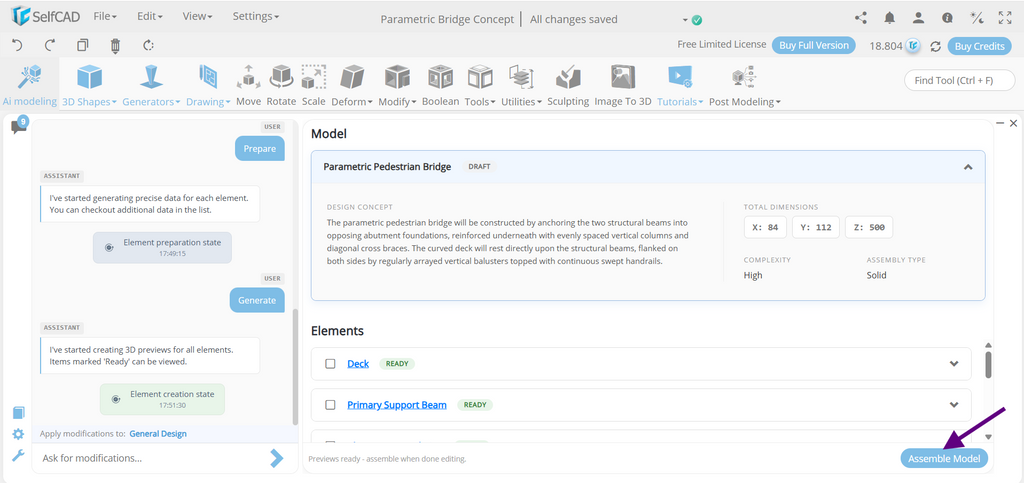
Now, you can preview the assembly of model here;
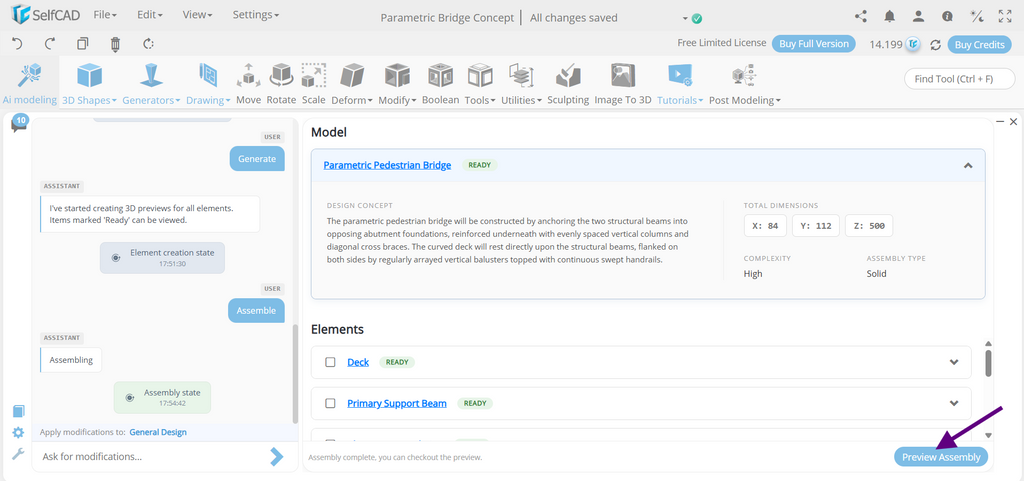
Step 10: Add the parametric bridge to the Scene
If you are pleased with the created bridge concept, add it to the SelfCAD scene. Once included, you can refine and improve the AI-generated design with the typical modeling tools found in your regular SelfCAD workspace.
This step is significant because AI Modeling does not have to be the last stage of the design process. Instead, it gives the initial bridge geometry and structural concept, whilst SelfCAD's standard tools allow you to alter dimensions, proportions, supports, connections, and other structural features to refine the final design.
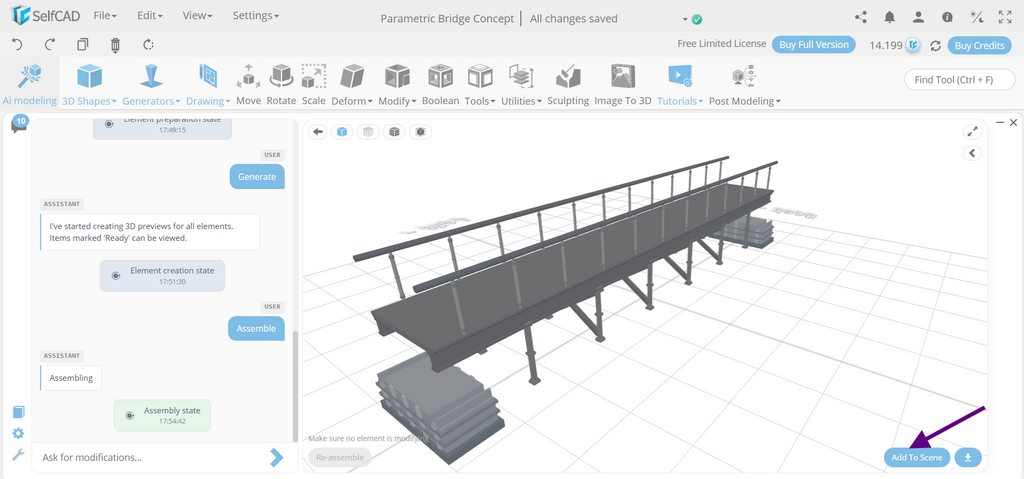
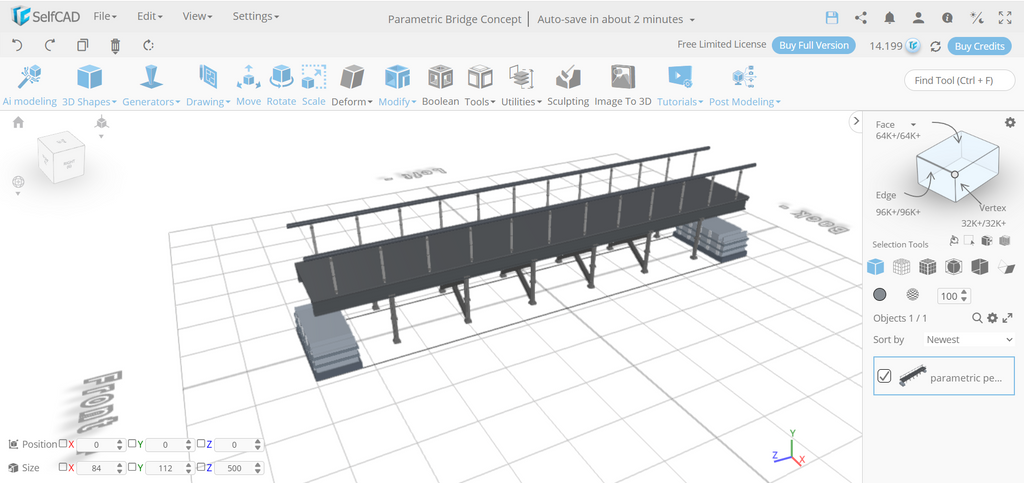
The resulting model looks like this:
Understanding The AI Modeling Workflow
The parametric bridge project showcases a viable methodology that combines AI generation with hands-on 3D design:
Describe → Add Reference → Generate → Assemble → Review → Ask to Modify → Add to scene
The AI Modeling process is more than just creating a model and accepting the first outcome. The designer is actively involved from the start, defining the bridge concept in detail and providing a reference image when more visual direction is required.
After creating the initial geometry, carefully inspect the bridge to ensure that its structure, proportions, supports, connections, and general form adhere to your original concept. If adjustments are required, you can add more AI instructions or use SelfCAD's traditional modeling capabilities to edit specific elements and improve the design.
This approach treats AI as a design assistance rather than a replacement for the designer. Combining AI-generated geometry with your own judgments and adjustments allows you to explore bridge concepts more efficiently while maintaining control over the structure and ultimate output.
Conclusion
SelfCAD AI Modeling is used to create a parametric bridge concept, demonstrating how AI may help with the early stages of structural design. Instead of building the bridge manually from individual primitives, you can express the notion using thorough text instructions and, if necessary, a reference image for further visual aid.
The quality of the given result is heavily reliant on the information provided in your prompt. Describe the bridge type, total size, deck construction, supports, beams, arches or cables, connections, proportions, parameters, and orientation in as much detail as feasible. A reference image may potentially provide further context about the intended form and appearance.
After creating the initial model, utilize SelfCAD's standard modeling tools to analyze the geometry, alter structural elements, refine proportions, and create the bridge concept based on your design specifications.