
Design a Fantasy Castle using a Selfcad AI Features
Designing a fantasy castle manually involves designing individual structures, determining their size, placing towers, walls, roofs, and other architectural aspects, and fine-tuning the overall composition. SelfCAD AI offers an alternate technique by allowing you to describe your castle design in natural language while generating an initial 3D model. This can ease the early phases of development while allowing you the freedom to modify the design.
In this blog, we will build a dream castle with SelfCAD AI Modeling. You'll learn how to choose the Functional Assembly mode, include an optional reference image, construct a comprehensive prompt, produce and alter components, and assemble the model. After creating the initial design, you can utilize SelfCAD's traditional modeling tools to change the dimensions, proportions, location, and architectural elements. This combination of AI creation and manual editing creates a versatile methodology for developing unique fantasy castle designs.
Steps for Designing a Fantasy Castle with SelfCAD AI
In this blog, we will create a personalized fantasy castle complete with towers, walls, gates, roofs, battlements, and other architectural features. The approach also exemplifies an important AI modeling principle: explicit and detailed instructions help express the intended structure, proportions, layout, and visual elements more effectively.
Step 1: Launch SelfCAD and Open AI Modeling.
To start, open the SelfCAD Editor and create a new project.
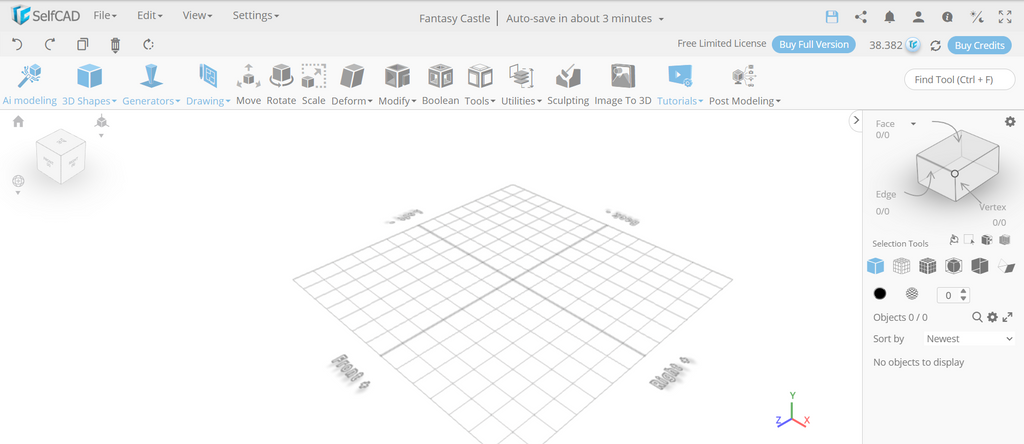
When the workspace is open, pick AI Modeling.
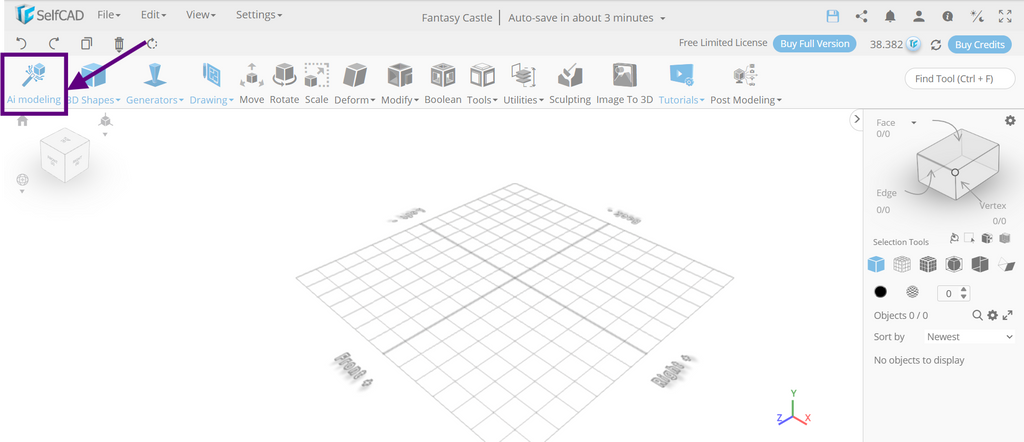
We will initially utilize AI to determine the fundamental geometry of the fantasy palace rather than directly building each object by hand. SelfCAD AI allows you to describe the design with text prompts and creates an initial model based on your instructions.
This project requires a structured fantasy castle with clearly defined architectural components such as towers, walls, gates, roofs, battlements, and a foundation, rather than an organic or just ornamental thing. This organized technique helps AI grasp the castle's main architecture and allows you to fine-tune its proportions, arrangement, and architectural details afterward.
Step 2: Select Functional Assembly.
Select Functional Assembly as the creation mode.
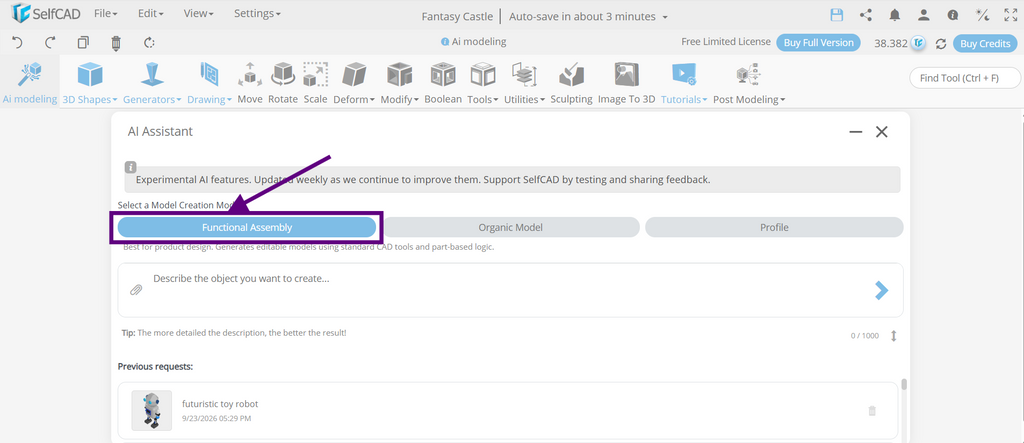
A fantasy castle is made up of interconnected architectural components such as towers, walls, gates, roofs, battlements, a foundation, and other decorative elements. Each part adds to the overall structure and works together to form a unified, well-proportioned castle design.
Functional Assembly is suited for this type of project since it helps to organize designs that have several connected aspects. It also explains how each component affects the castle's proportions, structure, placement, and overall appearance. Using this method, you can create the primary castle elements and polish their arrangement before making further changes using SelfCAD's traditional modeling tools.
Step 3: Include a Reference Image and Write the Prompt
You can upload a reference image to provide further visual information about the fantasy castle. The image can serve to convey the intended architectural style, tower shapes, proportions, component arrangement, ornamental accents, and overall appearance.
However, the reference image should augment, not replace, the stated question. A full written description is still required to effectively express the fantasy castle's structure, proportions, architectural components, layout, and design needs to the AI.
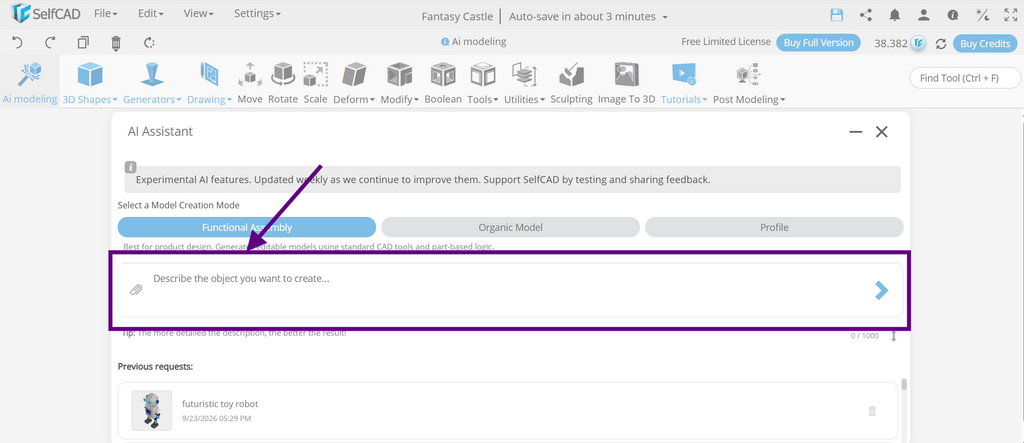
Use a prompt such as:
Create a detailed 3D model of a majestic fantasy castle designed with a magical medieval appearance. Include a large central castle building, tall cylindrical towers with pointed roofs, fortified stone walls, a main entrance with an arched doorway, and a raised gatehouse. Add decorative elements such as battlements, narrow windows, turrets, and flags on the tower tops. Use varied heights and layered architectural details to give the castle a grand and believable appearance. Keep the structure stable with a wide base and ensure the walls, towers, roofs, and decorative elements are properly connected or positioned for 3D printing. Use smooth, clean geometry with sufficient thickness for strength while maintaining recognizable fantasy details. The final design should look impressive, symmetrical, and suitable as a tabletop fantasy castle model.
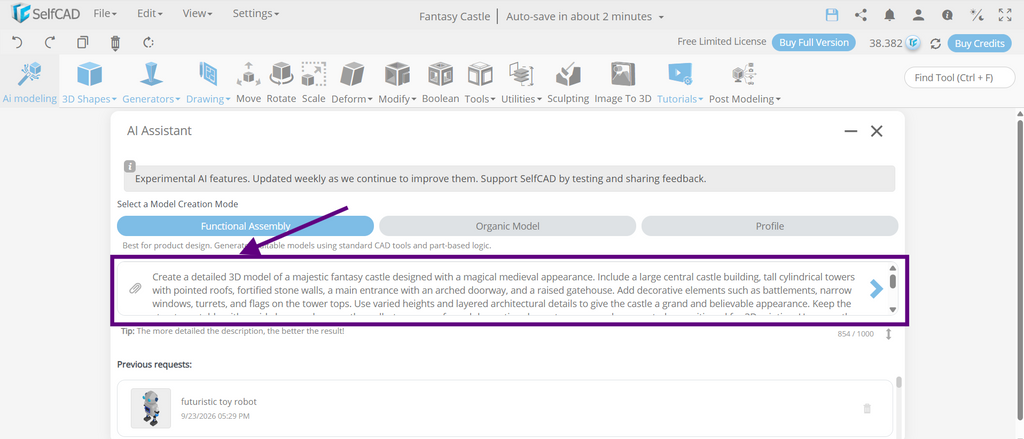
The prompt specifies the architectural style, components, size, shape, arrangement, orientation, and interactions between the many structures of the fantasy castle. It describes important characteristics such as towers, walls, gates, roofs, battlements, and decorative embellishments to assist the AI in creating a cohesive and well-proportioned castle design.
Step 4: Generate the initial model
After entering the prompt, select Generate.
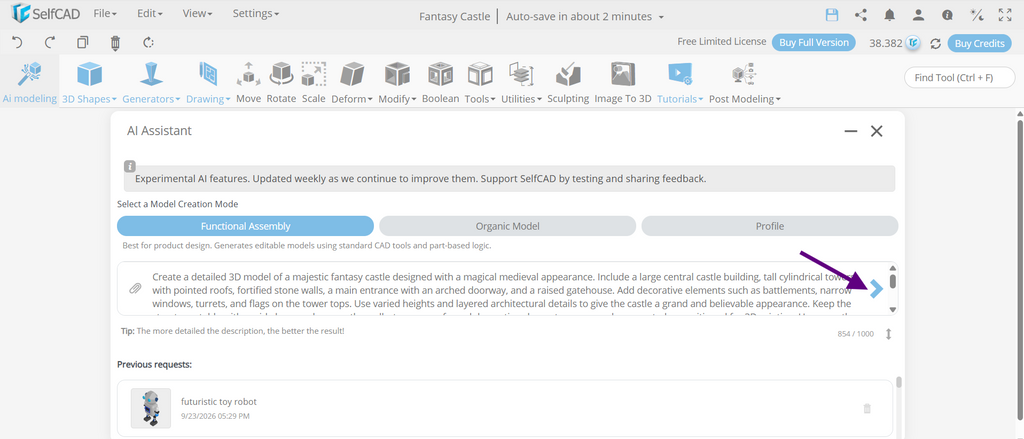
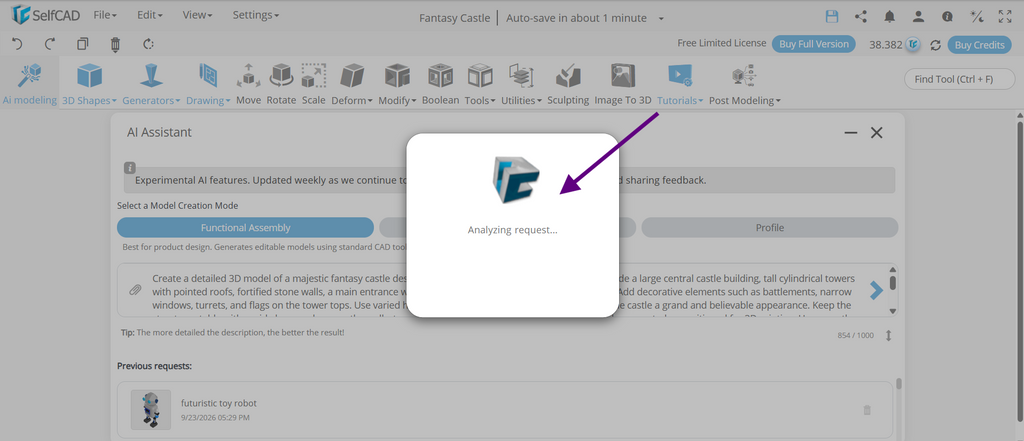
SelfCAD AI will follow the instructions and create a simple 3D fantasy castle. The design may contain towers, walls, gates, roofs, battlements, a foundation, and other architectural elements given in the prompt.
This is where AI-assisted modeling diverges from traditional modeling. Instead of manually building, scaling, duplicating, and positioning each primitive, you first define the ideal castle design and then let AI generate the initial geometry.
The created model should be seen as a starting point for inspection and adjustment, rather than the end product. SelfCAD's modeling capabilities allow you to evaluate and refine the structure's dimensions, component placement, architectural features, and overall appearance.
Step 5: Prepare the Parts
Once the fantasy castle has been generated, click Prepare Parts.
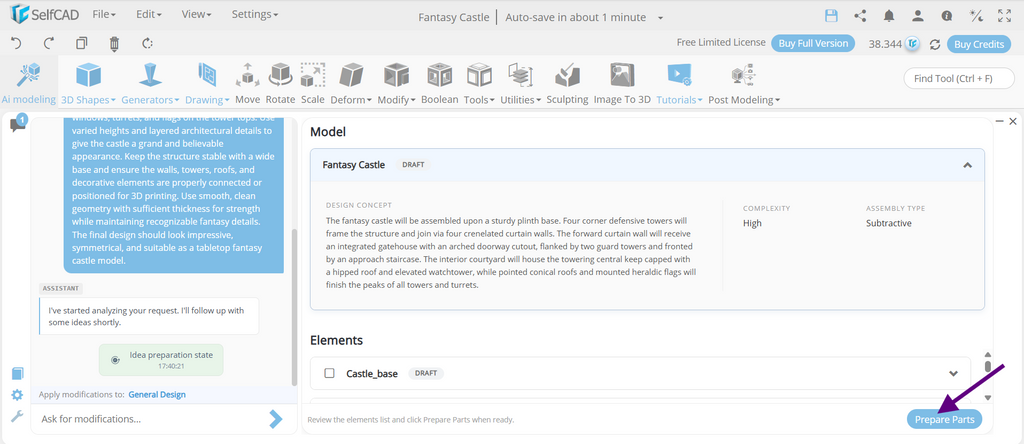
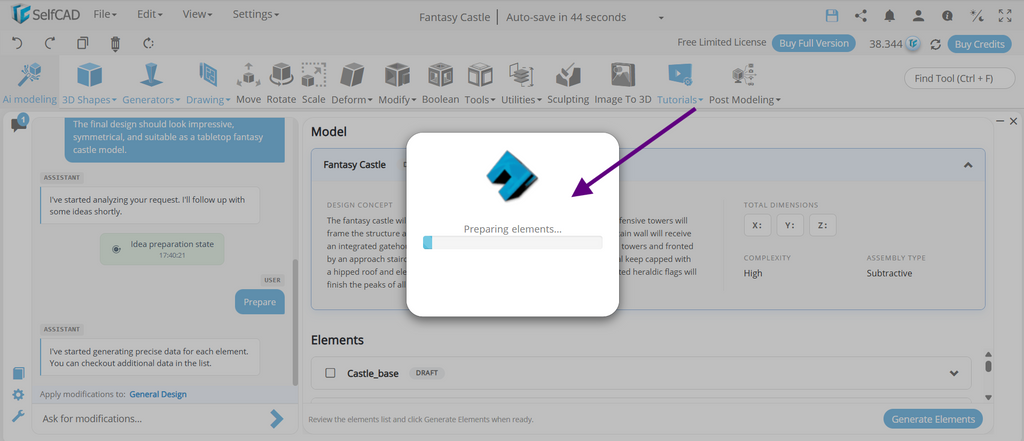
This prepares the various castle components to be handled individually. Depending on the created design, the sections could be towers, walls, gates, roofs, battlements, a foundation, and other architectural aspects.
Separating the components enables for targeted changes without rebuilding the entire fantasy castle.
This stage is very beneficial when you need to change a single piece, such as raising a tower, modifying the thickness of the walls, resizing the gate, tweaking the roof shape, or fine-tuning the proportions of the castle's major parts.
Step 6: Ask for Modifications
After preparing the components, you can use AI to request modifications.
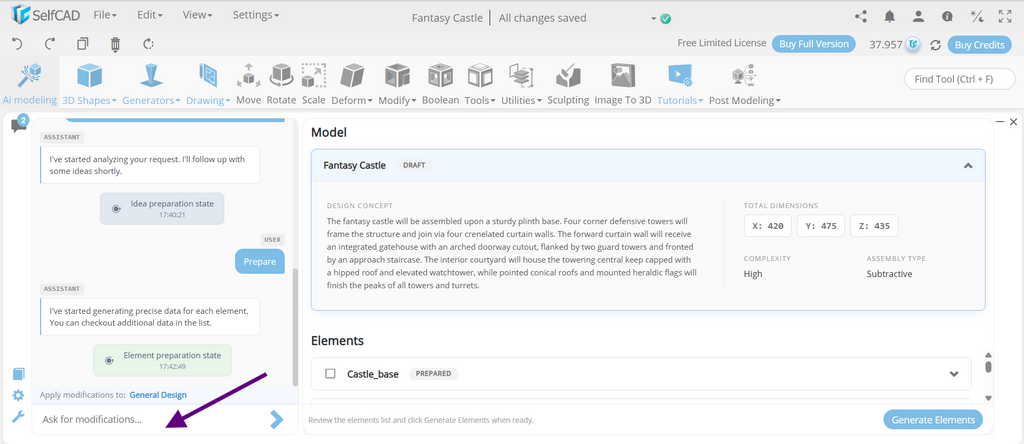
For example, you could ask:
"Increase the height of the castle towers while maintaining their current positions and proportions."
You can also request changes to the wall thickness, gate size, roof dimensions, battlement height, tower shape, foundation size, and overall proportions. These customized instructions make it simple to upgrade specific architectural elements while retaining the remainder of the fantasy castle.
Generate Elements:
Once the instructions have been given, click Generate Elements. SelfCAD AI will create the revised fantasy castle components based on your specifications, allowing you to evaluate the updated towers, walls, gates, roofs, battlements, and other architectural elements before moving forward with further refinements.
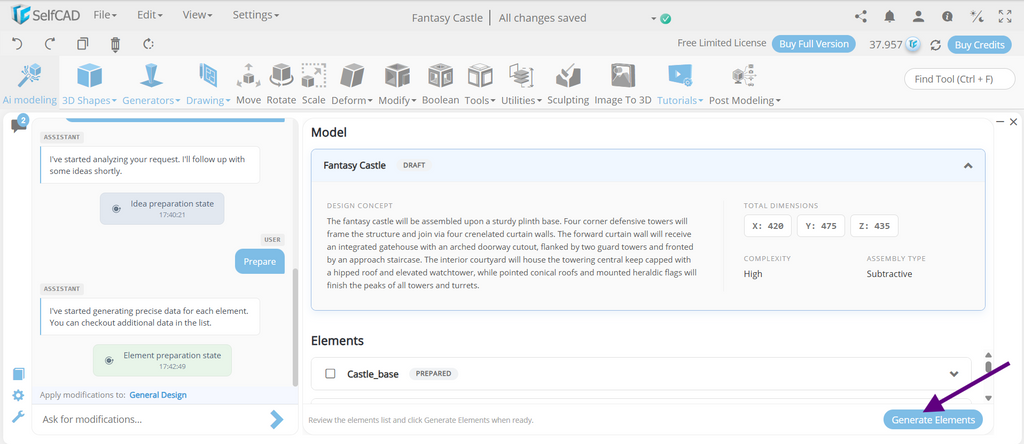
Make sure the constructed fantasy castle pieces meet your expectations in terms of thickness, dimensions, alignment, proportions, and relationships before moving forward. Check that the towers, walls, gates, roofs, battlements, foundation, and other architectural elements are properly aligned and work together to create a balanced, cohesive, and well-proportioned castle design.
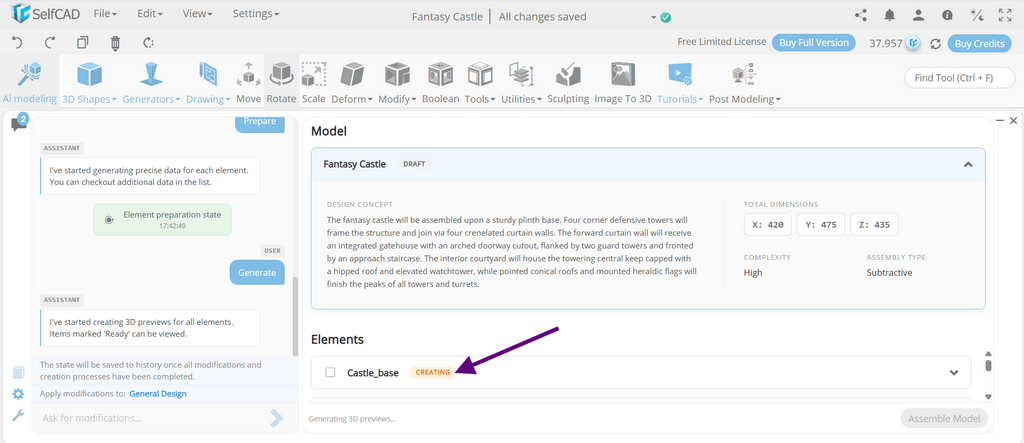
Step 7: Assemble Model
Once all of the components are ready, click Assemble Model.
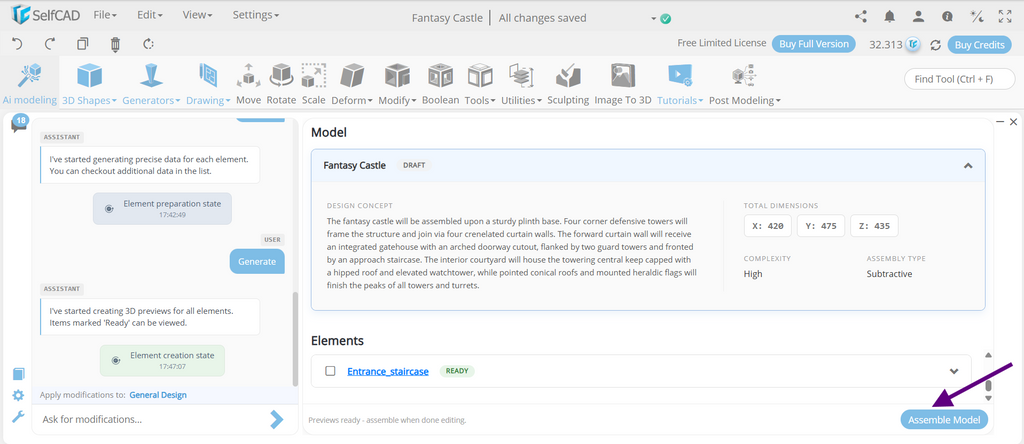
SelfCAD will combine the prepared elements to create the entire fantasy castle. The towers should be aligned with the walls and foundation, and the gates, roofs, battlements, and other architectural elements must be properly positioned to retain the ideal proportions and structure. This assembly produces a cohesive castle model, which may be inspected, tweaked, and improved using SelfCAD's typical modeling tools.
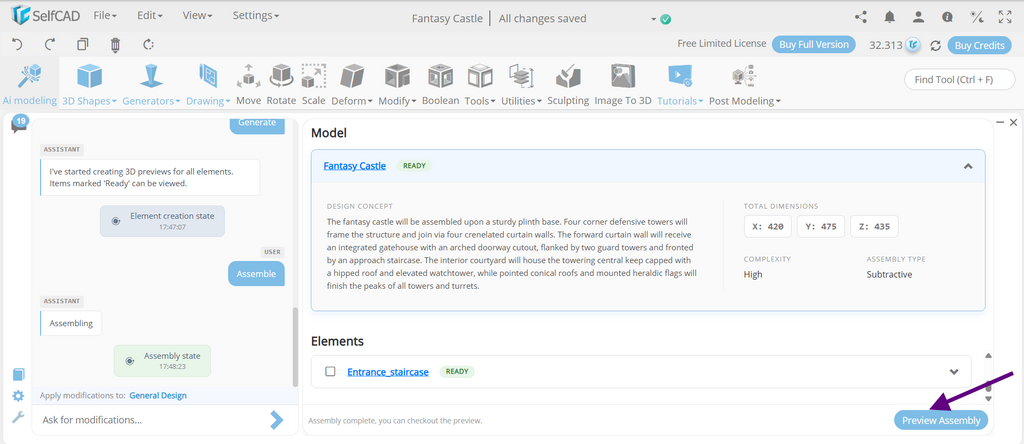
Inspect the fantasy palace from every perspective after it has been assembled. Check for inappropriate positioning, unequal proportions, misaligned constructions, or accidental crossings between components. Check that the towers, walls, gates, roofs, battlements, foundations, and other architectural elements are properly connected and structured.
This step demonstrates how artificial intelligence can be used to produce and organize many architectural components into an organized 3D fantasy castle model. It also provides an opportunity to identify areas that require change before moving on to comprehensive revision.
Step 8: Add the Model to the SelfCAD Scene
When you're finished with the model, add the fantasy palace to the SelfCAD scene. This allows you to continue working on the entire castle with SelfCAD's traditional modeling tools, making final tweaks to its structure, dimensions, placement, and architectural features.
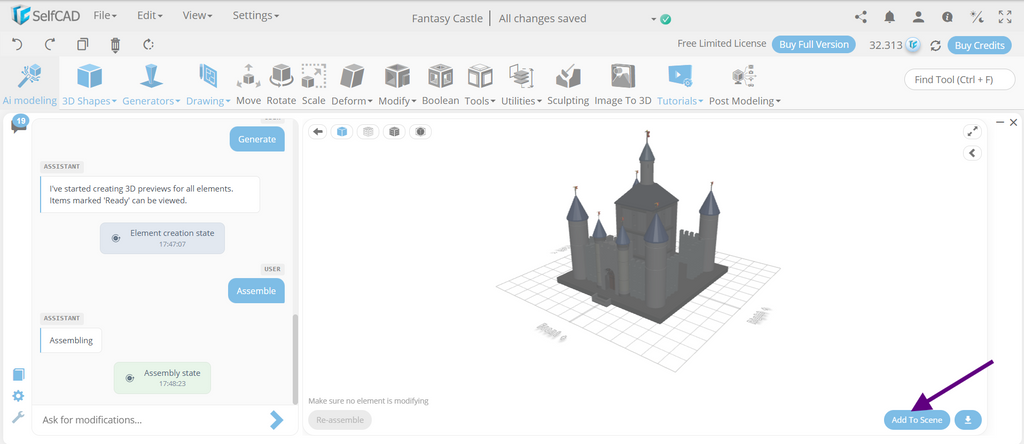
The AI-generated fantasy castle is now integrated into the regular SelfCAD workspace. You can continue to work on it with SelfCAD's usual modeling tools.
This is an important step in the workflow because AI modeling does not have to be the last stage. Instead, AI can generate basic castle geometry, whereas traditional SelfCAD tools provide more control over the final design.
You can use the Rotate Tool to reorient towers or other structures, the Move Tool to reposition individual components, and the Scale Tool to change their dimensions as needed.
Step 9: Refine the Model
After placing the model in the scene, examine its overall size, proportions, component alignment, and structural thickness.
You can alter features like tower height, wall thickness, gate size, roof proportions, battlement height, and foundation dimensions to suit your demands because the objective is to build a personalized fantasy castle.
You may also adjust the appearance with SelfCAD's normal modeling tools. Beveling or fileting can be used to smooth out edges and clean up transitions between architectural parts.
If the fantasy castle is going to be 3D printed, make sure the geometry, connections, wall thickness, and structural features are appropriate for the process. Examine for thin sections, unsupported pieces, and junctions that may influence the final print.
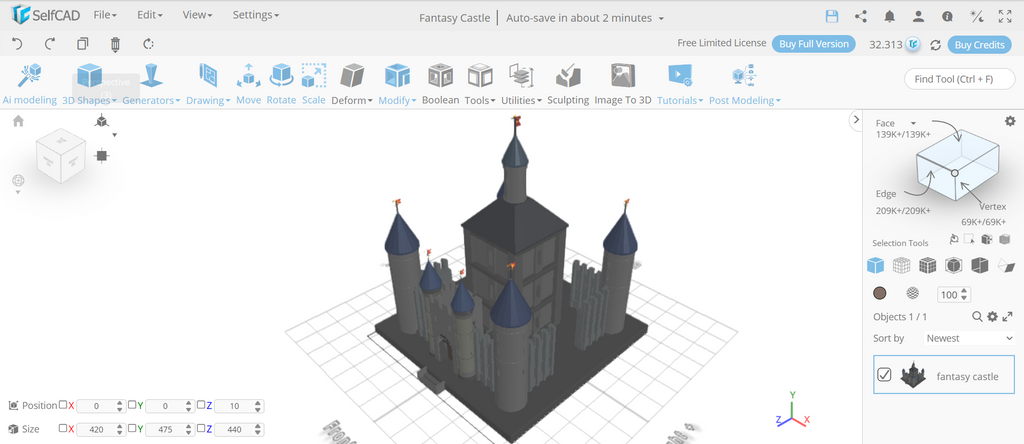
Step 10: Inspecting the Final 3D Model
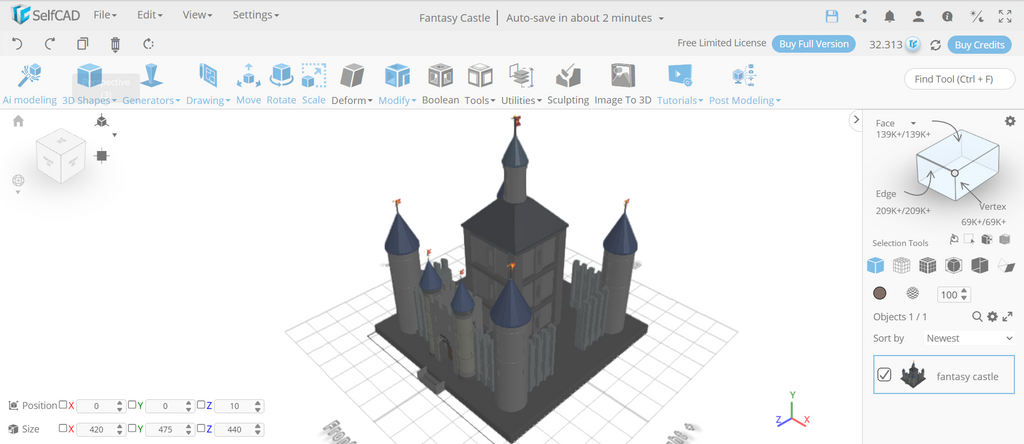
Finally, look at the completed fantasy castle from various viewpoints. Ensure that the towers, walls, gates, roofs, battlements, foundation, and other architectural elements are correctly aligned, connected, and proportioned.
If you uncover anything that needs to be improved, go back to the appropriate level and make the necessary modifications. SelfCAD's modeling capabilities allow you to alter individual components or refine the overall structure.
The main advantage of combining SelfCAD AI Modeling with traditional modeling tools is that you are not restricted to the first AI-generated design. AI generates the initial geometry, but SelfCAD gives you control over the fantasy castle's ultimate proportions, layout, orientation, architectural features, and overall appearance.
Conclusion
SelfCAD AI simplifies fantasy castle creation by turning a thorough natural-language description into an initial 3D structure. Functional Assembly allows users to design various architectural components such as towers, walls, gates, roofs, battlements, and foundations while maintaining explicit links between each portion. AI-assisted generation eliminates the need to manually generate each component from scratch.
After creating the model, users can inspect, change, assemble, and refine it using SelfCAD's standard modeling tools. This method offers flexibility while retaining control over measurements, proportions, positioning, structure, and look. As a result, designers may easily develop bespoke dream castles while fine-tuning the AI-generated model to meet their specific design needs.